

Looking for how the feature works day-to-day? See the
Timeclock feature guide.
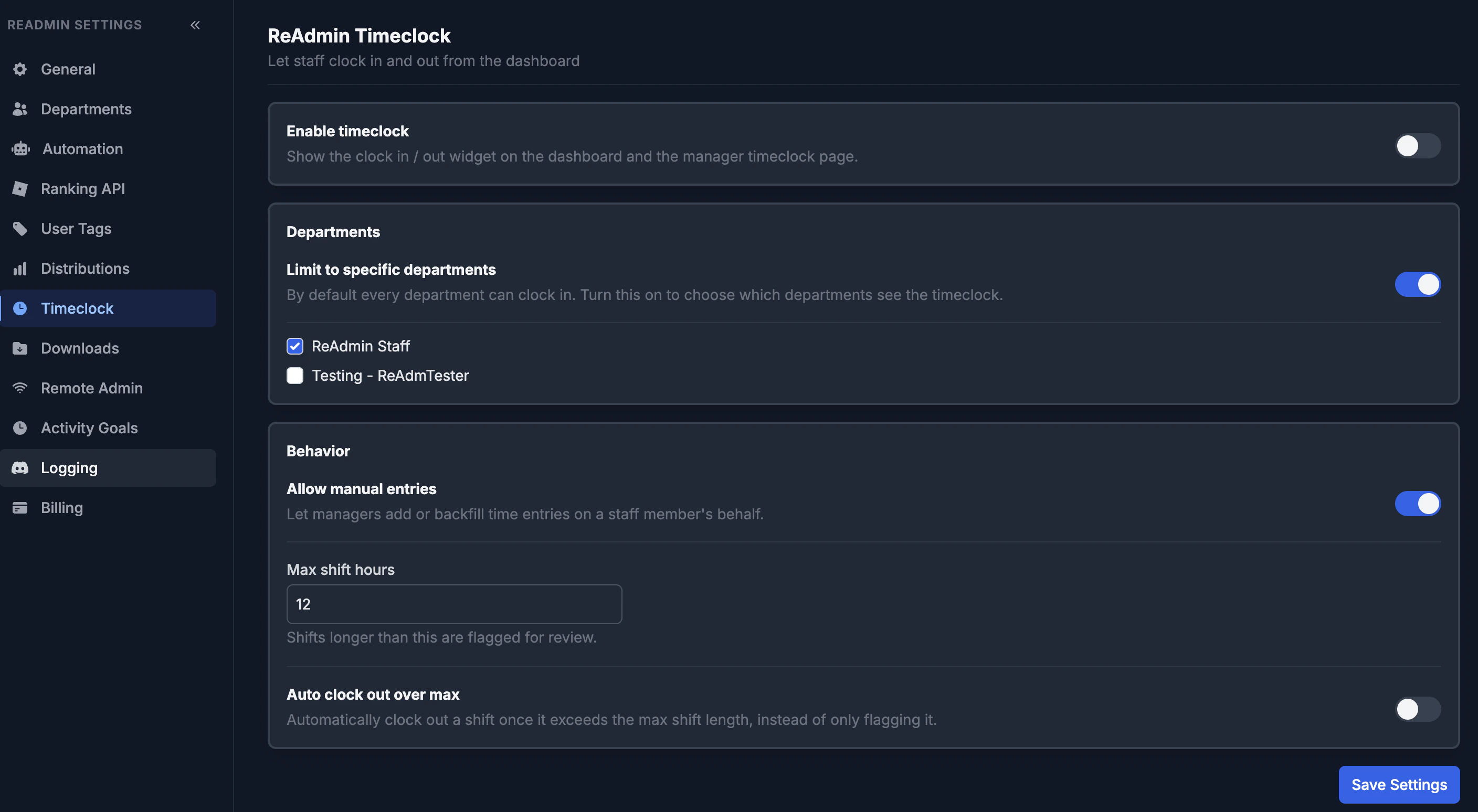
Enable timeclock
The Enable timeclock toggle is the master switch. While it is off, the clock in / out widget, the manager Timeclock page, and the staff profile Timeclock tab are all hidden. Turn it on to make the feature available across your workspace.Departments
By default, every department can clock in. Turn on Limit to specific departments to choose exactly which departments see the timeclock, then tick the departments that should have it. This restriction only controls self-service clocking — managers with the View, Manage, or Edit permission can still see attendance for everyone regardless of the allow-list.Behavior
- Allow manual entries — lets managers add or backfill time on a staff member’s behalf (for example, when someone forgets to clock in). Turn it off to make clock-ins strictly self-service.
- Max shift hours — the longest a shift can run (1–48 hours) before it is flagged for review. Open shifts that pass this length show up in the manager page’s Needs review list.
- Auto clock out over max — instead of only flagging a long shift, automatically clock it out once it exceeds the max shift length.
Timeclock files every shift under the active
distribution, so attendance always lines up with the
same periods your activity data uses.