

This feature is early-access, please give us feedback!
Timeclock is configured from your Timeclock settings. An
admin must enable it before the widget and manager page appear.
Clocking in and out
When the timeclock is enabled for a staff member’s department, a Clock In / Clock Out widget appears on their workspace dashboard. One click starts a shift; one click ends it. A member can only have a single open shift at a time, and the widget shows their running shift length live.
Manager overview
The Timeclock page (in the workspace navigation) gives managers a full view of attendance for any distribution: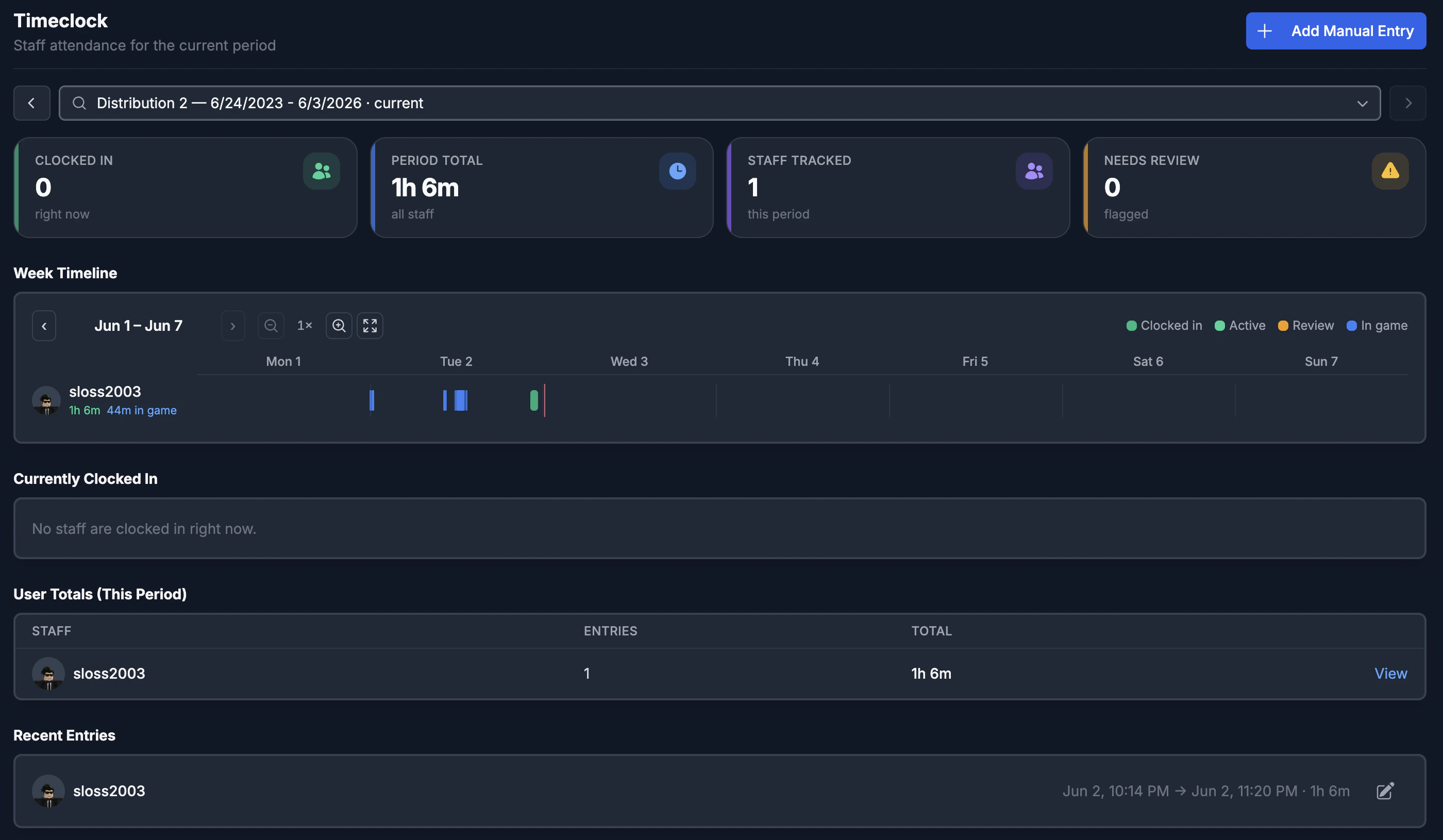
- Currently clocked in — everyone with an open shift right now, with their running shift length.
- Period totals — total clocked-in time per staff member for the selected distribution, ranked so your most-present staff rise to the top.
- Needs review — shifts that ran past your configured maximum length are flagged automatically so a manager can correct or close them.
- Recent activity — the latest clock-ins and clock-outs across the team.
Week timeline
The week timeline is a Gantt-style view of your team’s shifts. Each staff member gets a row, and their shifts are drawn as bars across a seven-day week.- Green bars are clocked-in time. Active (still-running) shifts pulse, and shifts flagged for review turn amber.
- Blue bars show tracked in-game time for the same period, pulled straight from your activity tracking. When a member is clocked in and in-game at the same moment, the two bars split the row — green on top, blue on the bottom — so you can instantly see whether clocked time matches real in-game time.
- A red marker shows the current time, and day gridlines keep everything aligned.
Manual entries
If a member forgets to clock in, a manager can add the time on their behalf. Manual entries use the same Roblox user search you’ll find elsewhere in ReAdmin — just search for the staff member, set the clock-in and clock-out times, and add a reason. Every manual entry is written to the audit trail so corrections are always traceable.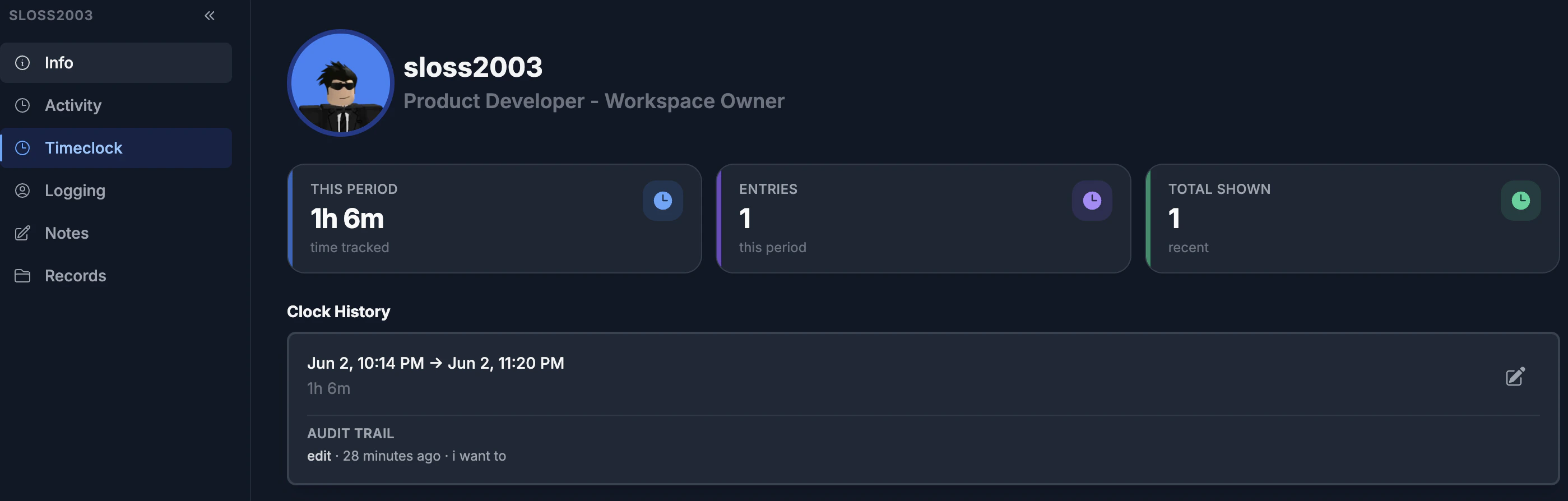
Manual entries can be turned off entirely from
Timeclock settings if you want clock-ins to be
self-service only.
Corrections and the audit trail
Managers with the right permissions can force a shift closed, edit an entry’s times, or add a manual entry. Every correction records who made it, when, and why, and is kept on the entry’s history so nothing is ever silently changed.Permissions
Timeclock uses department-level permissions so you control exactly who can do what:
Workspace admins automatically have every timeclock permission. Managers with
View see all records regardless of the department allow-list — the
department restriction only controls who can clock in for themselves.
Ready to turn it on? Head to Timeclock settings to enable
the feature, choose which departments can use it, and tune shift behavior.