

This feature is early-access, please give us feedback!
Teams is configured from your Teams settings. An admin must
enable it before the Teams navigation, request queue, and profile panels appear.
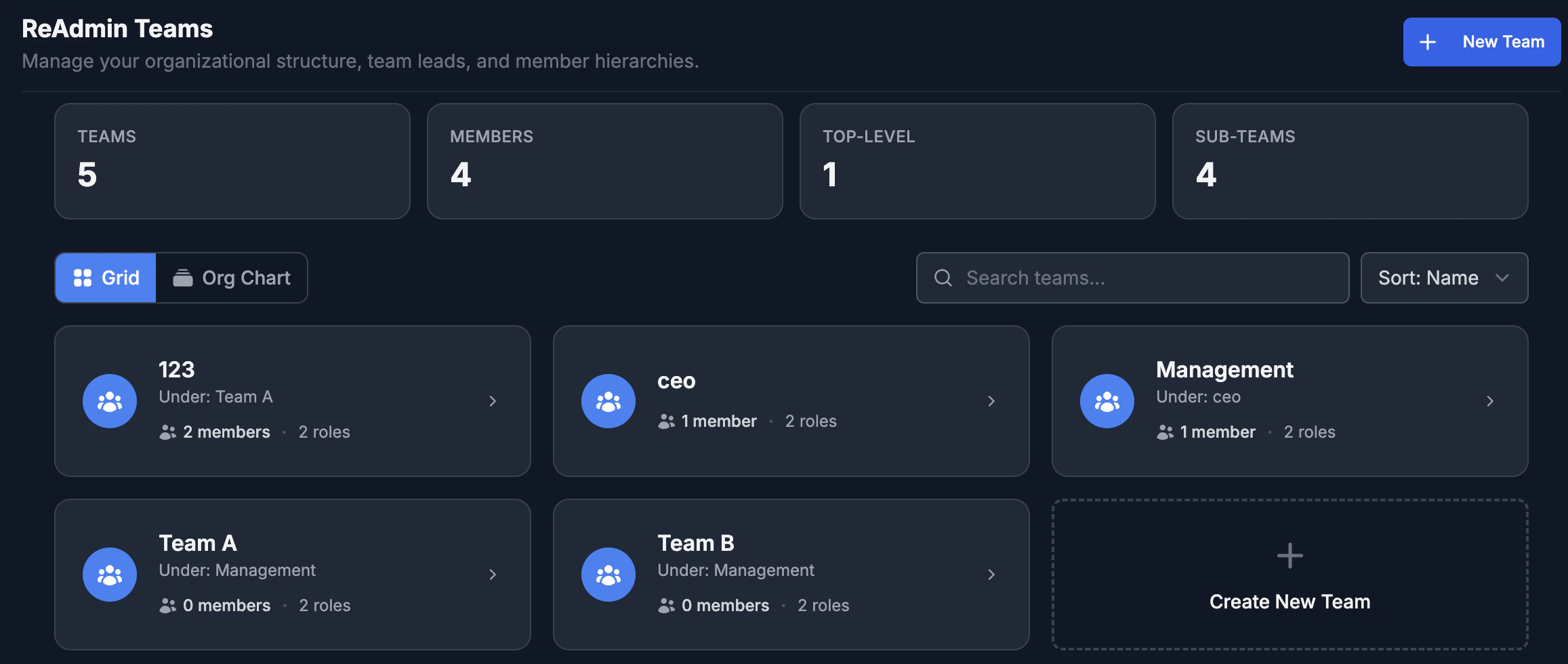
Teams and hierarchy
A team is a named group of members with one or more leads. Teams can sit under other teams, which gives you a tree — directors over managers over staff, department by department. From any member you can see:- The teams they belong to.
- Who they report to (their manager chain, all the way up).
- Their direct reports (everyone who reports to them).

Requests
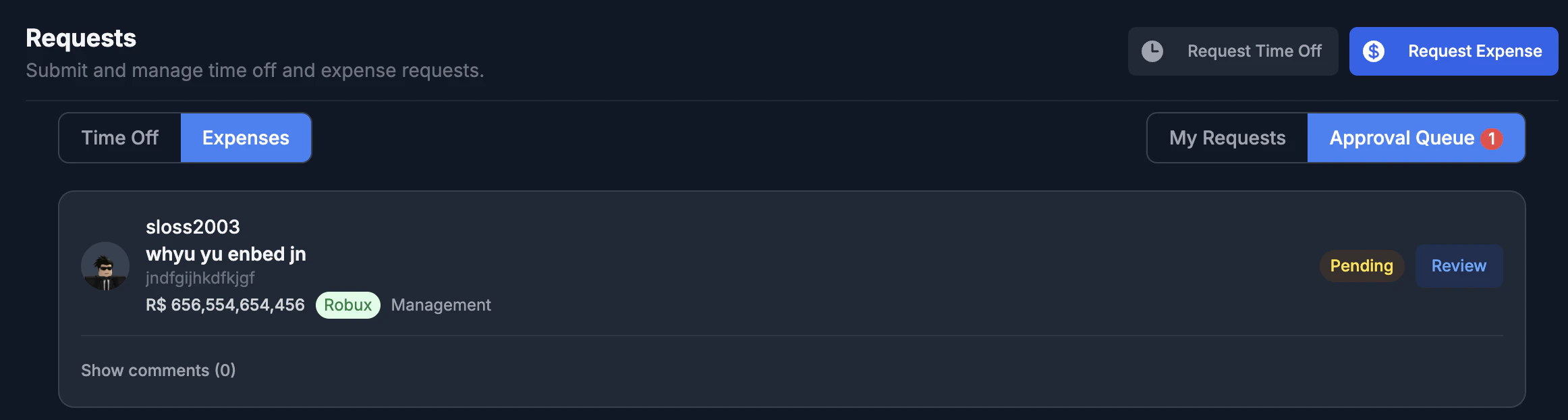
The Requests page (in the Teams navigation) is where members submit and track time-off and expense requests, and where approvers act on the ones waiting on them. It has two views:- Mine — requests you’ve submitted, filterable by status.
- Pending approvals — requests waiting on you, based on where they are in their approval chain.
Time off
A member requests time off with a reason and a date range. The request enters its configured approval chain and moves forward one step at a time as each approver signs off.Expense reports
An expense request carries an amount, a description, and optional file attachments (receipts, invoices, screenshots). Like time off, it walks its approval chain — but expenses can be routed very differently, for example skipping a direct manager and going straight to a finance team. See Expense routing below.You can restrict who is allowed to submit expense requests. When Let members
request expenses is turned off in Teams settings, only
managers and approvers see the Request Expense button and the server rejects
member submissions. Time-off requests are always available.
Approval routing
Every request type — time off and expenses — has its own approval chain, configured by an admin in Teams settings. There are two modes:Manager hierarchy
The request walks up the requester’s manager chain a set number of levels. One
level means just their direct manager; two escalates to their manager’s
manager, and so on.
Custom routing
You build an ordered list of steps. Each step can be a manager at a chosen
level, the leads of any team, or a specific person — so you can bypass
a direct report and send straight to another department.
Comments
Every request — time off or expense — has a comment thread. Approvers can ask a question before they decide, a requester can add context, and whoever pays out an expense can note exactly how it was disbursed. Comments live on the request itself, so the full story is always on the record rather than scattered across DMs.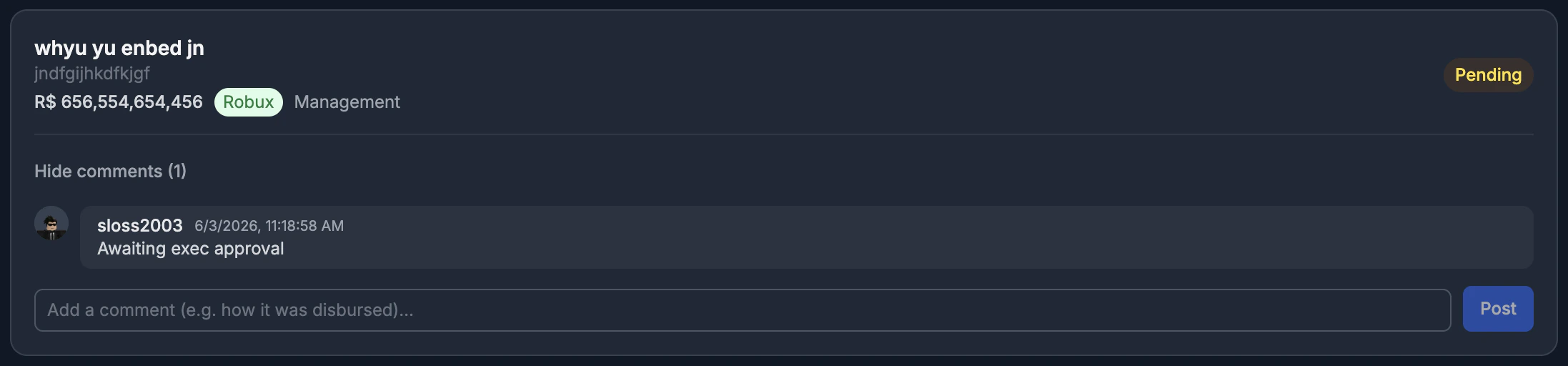
Permissions
Teams uses department-level permissions so you control exactly who can do what:
Workspace admins automatically have every Teams permission, can see all
pending requests regardless of chain, and are the only role that can change
Teams settings.