> ## Documentation Index
> Fetch the complete documentation index at: https://docs.readmin.app/llms.txt
> Use this file to discover all available pages before exploring further.
# Timeclock
> Enable the staff clock in / out system, choose which departments can use it, and control how shifts are handled.
Looking for how the feature works day-to-day? See the
[Timeclock feature guide](/features/timeclock).
Timeclock settings let a workspace admin turn the punch-in / punch-out system on,
decide who can use it, and tune how shifts are tracked and corrected. Only
workspace **admins** can change these settings.
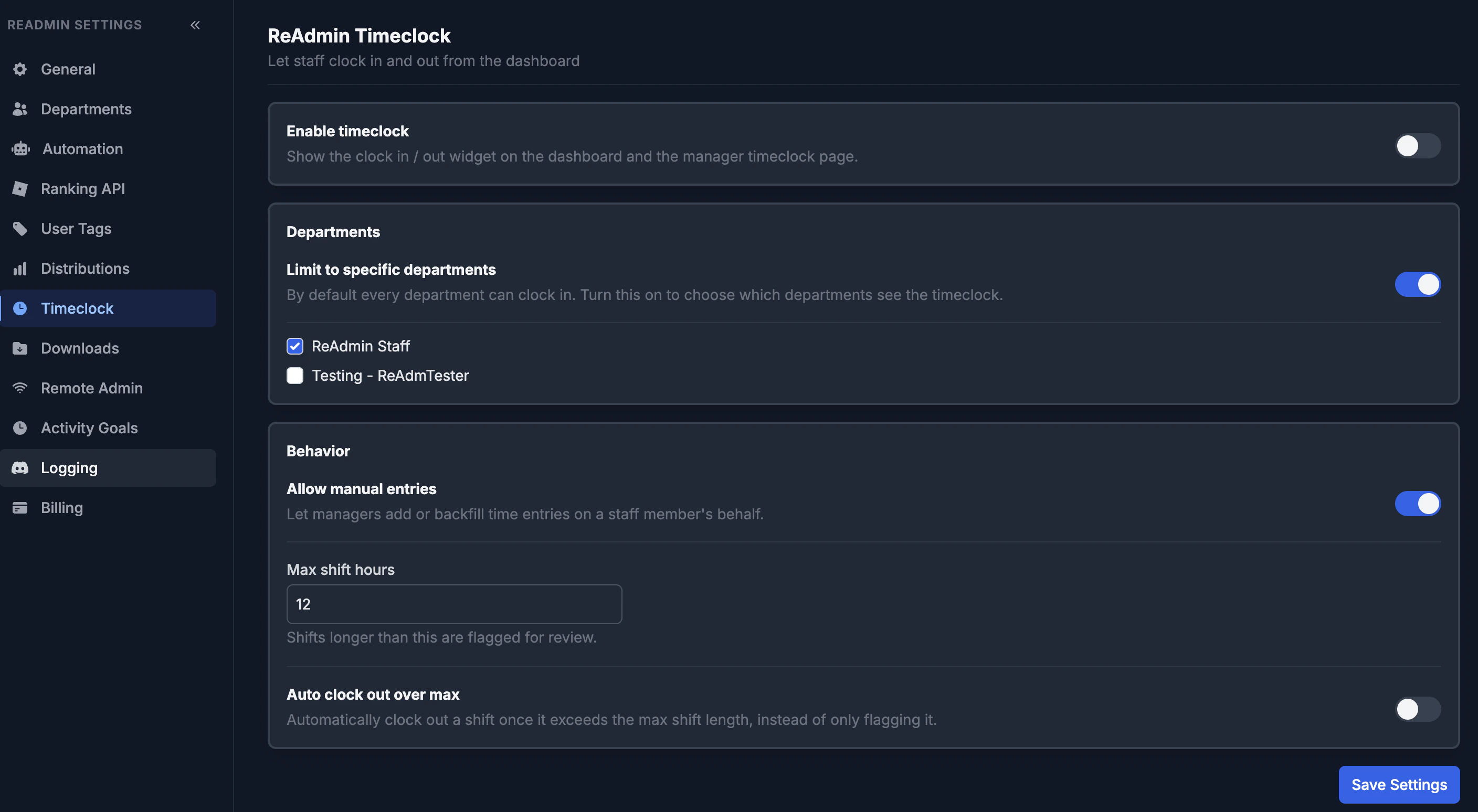 ## Enable timeclock
The **Enable timeclock** toggle is the master switch. While it is off, the clock
in / out widget, the manager Timeclock page, and the staff profile Timeclock tab
are all hidden. Turn it on to make the feature available across your workspace.
## Departments
By default, **every department can clock in**. Turn on **Limit to specific
departments** to choose exactly which departments see the timeclock, then tick
the departments that should have it.
This restriction only controls self-service clocking — managers with the View,
Manage, or Edit permission can still see attendance for everyone regardless of
the allow-list.
## Behavior
* **Allow manual entries** — lets managers add or backfill time on a staff
member's behalf (for example, when someone forgets to clock in). Turn it off to
make clock-ins strictly self-service.
* **Max shift hours** — the longest a shift can run (1–48 hours) before it is
flagged for review. Open shifts that pass this length show up in the manager
page's **Needs review** list.
* **Auto clock out over max** — instead of only flagging a long shift,
automatically clock it out once it exceeds the max shift length.
Click **Save Settings** to apply your changes.
Timeclock files every shift under the active
[distribution](/settings/distributions), so attendance always lines up with the
same periods your activity data uses.
## Enable timeclock
The **Enable timeclock** toggle is the master switch. While it is off, the clock
in / out widget, the manager Timeclock page, and the staff profile Timeclock tab
are all hidden. Turn it on to make the feature available across your workspace.
## Departments
By default, **every department can clock in**. Turn on **Limit to specific
departments** to choose exactly which departments see the timeclock, then tick
the departments that should have it.
This restriction only controls self-service clocking — managers with the View,
Manage, or Edit permission can still see attendance for everyone regardless of
the allow-list.
## Behavior
* **Allow manual entries** — lets managers add or backfill time on a staff
member's behalf (for example, when someone forgets to clock in). Turn it off to
make clock-ins strictly self-service.
* **Max shift hours** — the longest a shift can run (1–48 hours) before it is
flagged for review. Open shifts that pass this length show up in the manager
page's **Needs review** list.
* **Auto clock out over max** — instead of only flagging a long shift,
automatically clock it out once it exceeds the max shift length.
Click **Save Settings** to apply your changes.
Timeclock files every shift under the active
[distribution](/settings/distributions), so attendance always lines up with the
same periods your activity data uses.