> ## Documentation Index
> Fetch the complete documentation index at: https://docs.readmin.app/llms.txt
> Use this file to discover all available pages before exploring further.
# Downloads
> To setup activity-tracking, and remote-admin you must install the ReAdmin module.
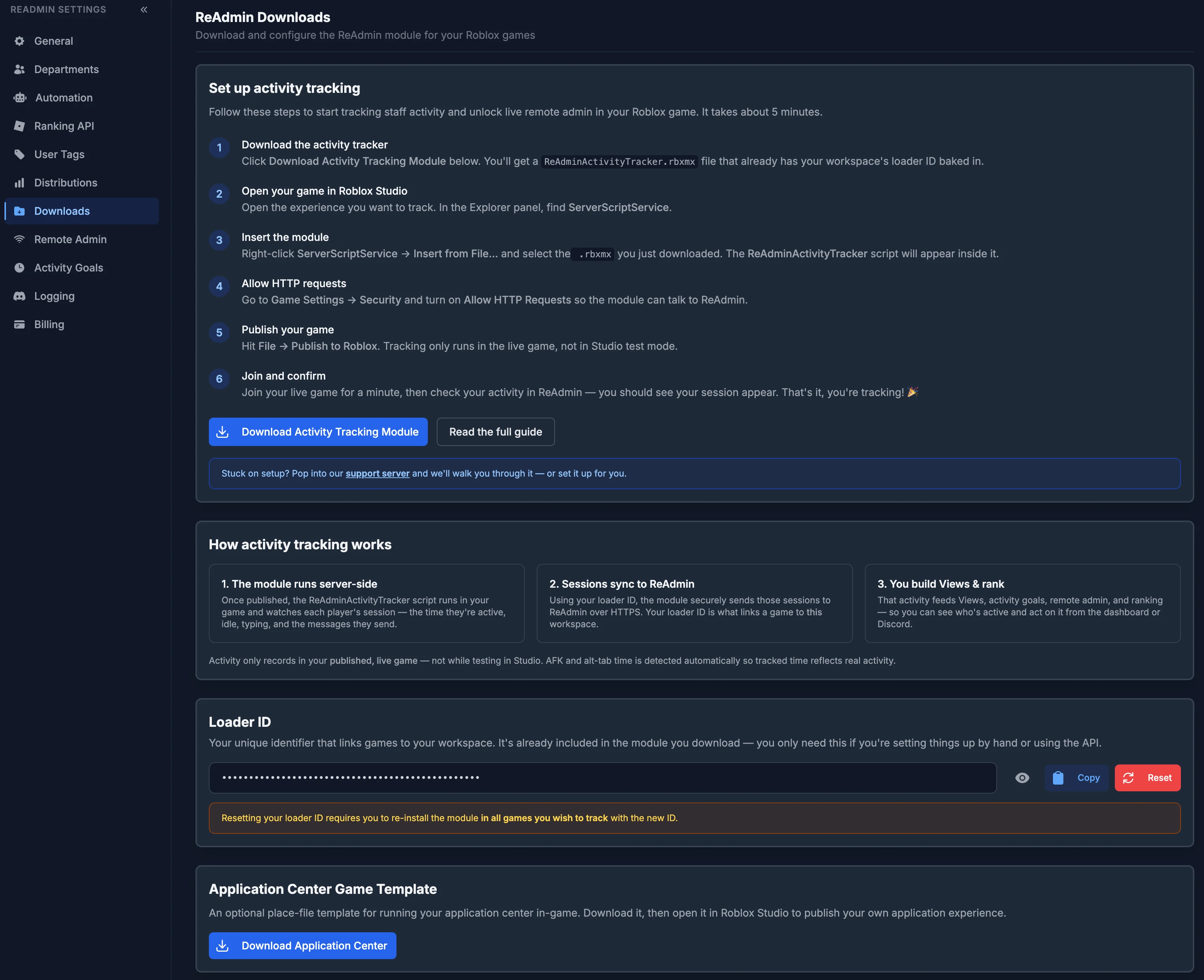
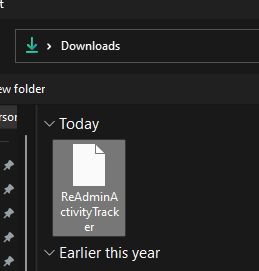
Let's download the Acitivty Tracking loader for ReAdmin. After clicking the "Download Acitivity Tracking Module", ReAdmin's loader will be downloaded to your computer. Do not lose where you save this file, you will need it.
 1. Go to a Roblox Game and open the experience in Roblox Studio.
You must have edit access!
ReAdmin cannot give you this access. You must own the Roblox Game or have edit permissions!
1. Go to a Roblox Game and open the experience in Roblox Studio.
You must have edit access!
ReAdmin cannot give you this access. You must own the Roblox Game or have edit permissions!
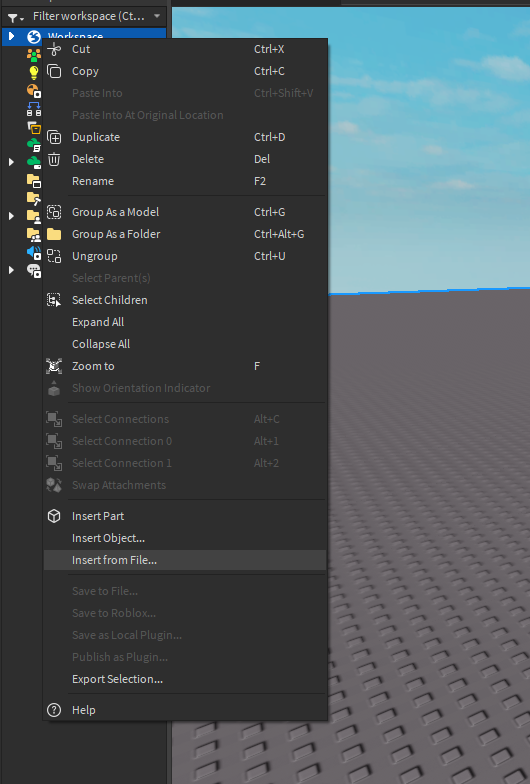
 2. Right click on the Workspace in Roblox Studio. Click "Insert from File" in the dropdown. Find the downloaded file from ReAdmin.
3. Put this script into ServerScriptService
2. Right click on the Workspace in Roblox Studio. Click "Insert from File" in the dropdown. Find the downloaded file from ReAdmin.
3. Put this script into ServerScriptService
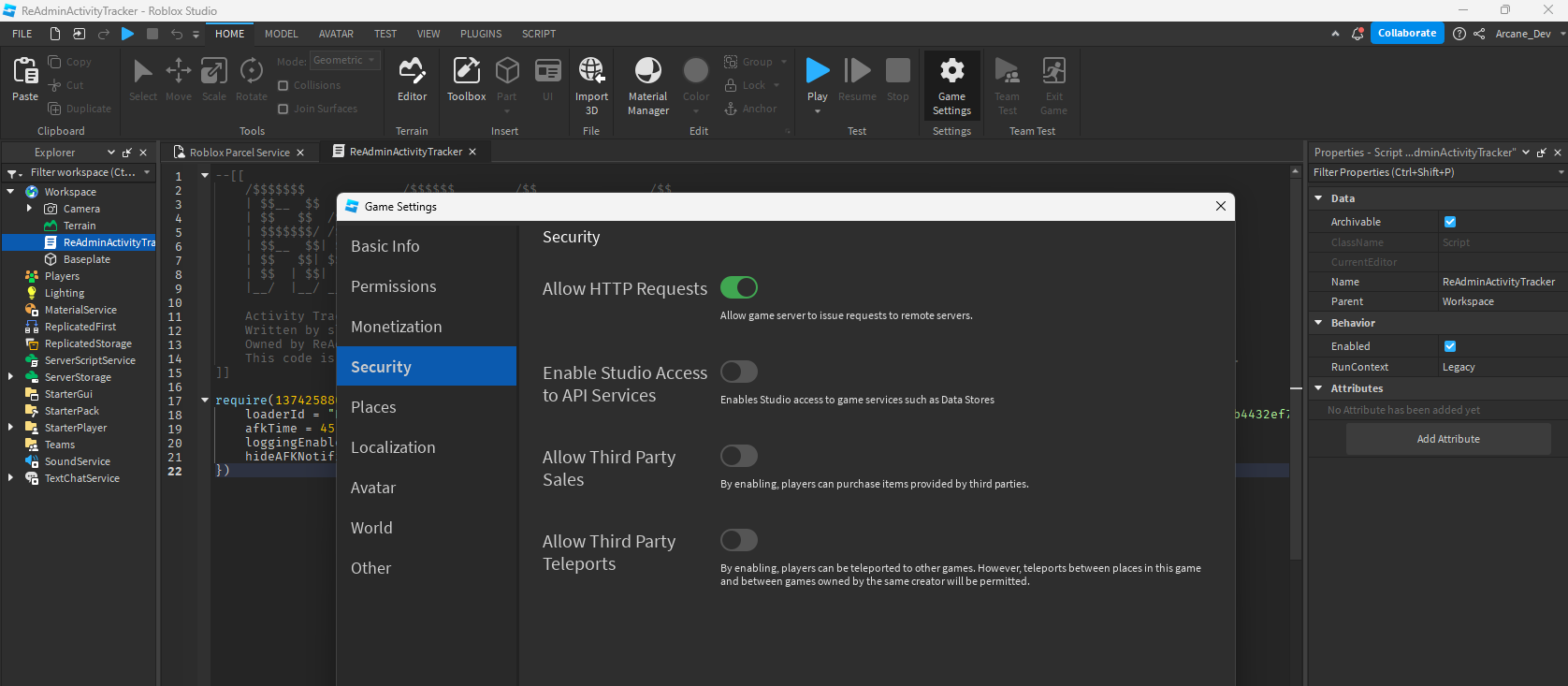
 4. One last thing for this to work, we have to enable HTTP requests for the game. Go to the top right and click on Game Settings. This is in the Home submenu. Navigate to Security and enable requests.
 5. After the Loader has been added, Publish your game to Roblox or push `ALT` & `P` on your keyboard.
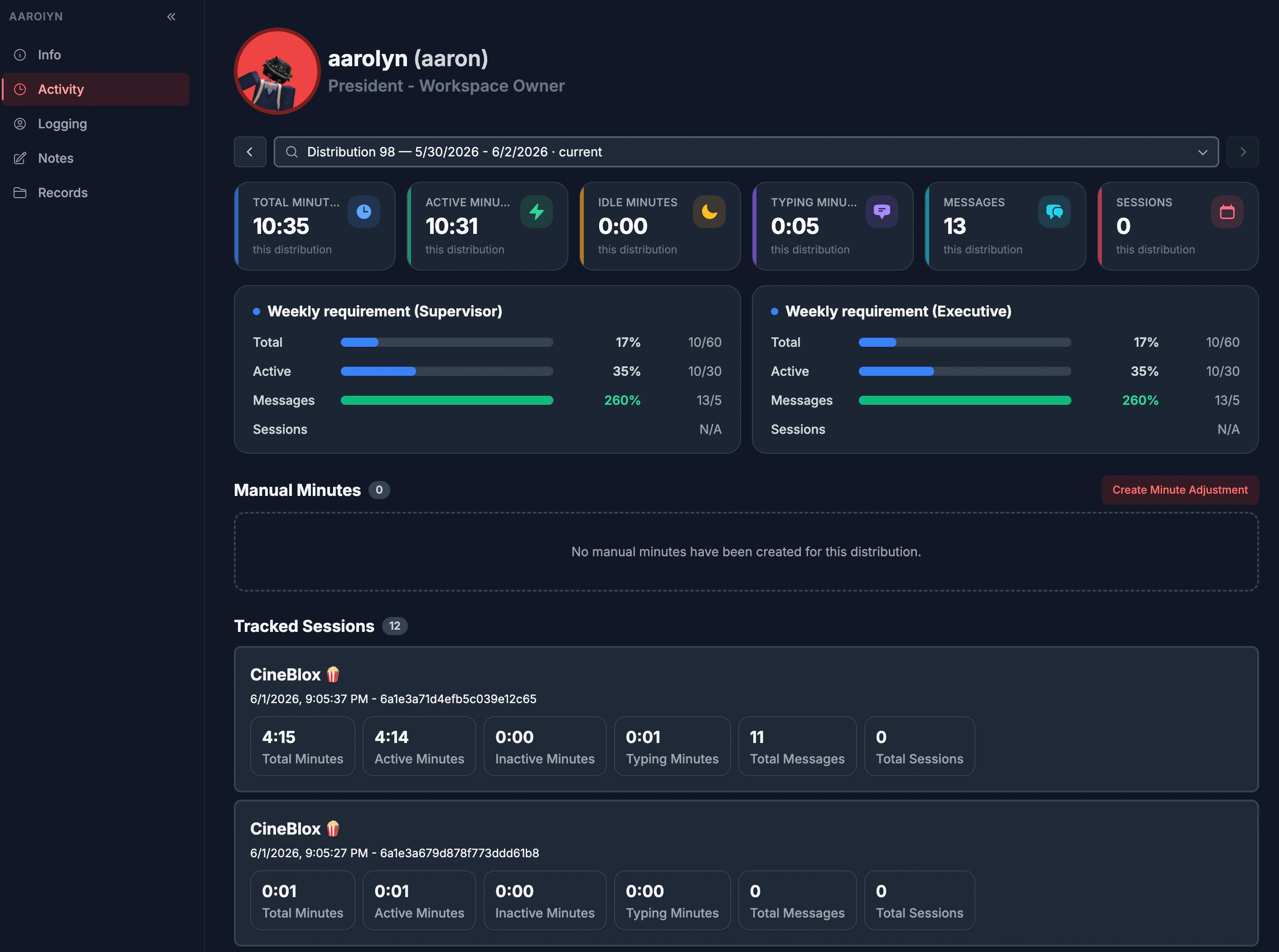
 The result should allow user play time to be tracked from in-game. You can now begin to view [user activity](/features/user).
 ## Next steps
The same loader powers your in-game [Remote Admin](/settings/remote-admin) command
layer and [Calls](/features/calls). Once it's installed you can:
* Configure command permissions in [Remote Admin settings](/settings/remote-admin).
* Write your own commands and pass them to the loader — see
[Custom Remote Admin Commands](/api-reference/custom-commands).
## Next steps
The same loader powers your in-game [Remote Admin](/settings/remote-admin) command
layer and [Calls](/features/calls). Once it's installed you can:
* Configure command permissions in [Remote Admin settings](/settings/remote-admin).
* Write your own commands and pass them to the loader — see
[Custom Remote Admin Commands](/api-reference/custom-commands).