> ## Documentation Index
> Fetch the complete documentation index at: https://docs.readmin.app/llms.txt
> Use this file to discover all available pages before exploring further.
# Staff Profile
> Quickly view information about a staff member
The Staff Profile is the complete view of a single team member — activity, goals,
staff history, records, and notes — in one place. It's where managers go to
understand how someone is performing, recognize great work, and keep an accurate,
fair record of every action.
## Info
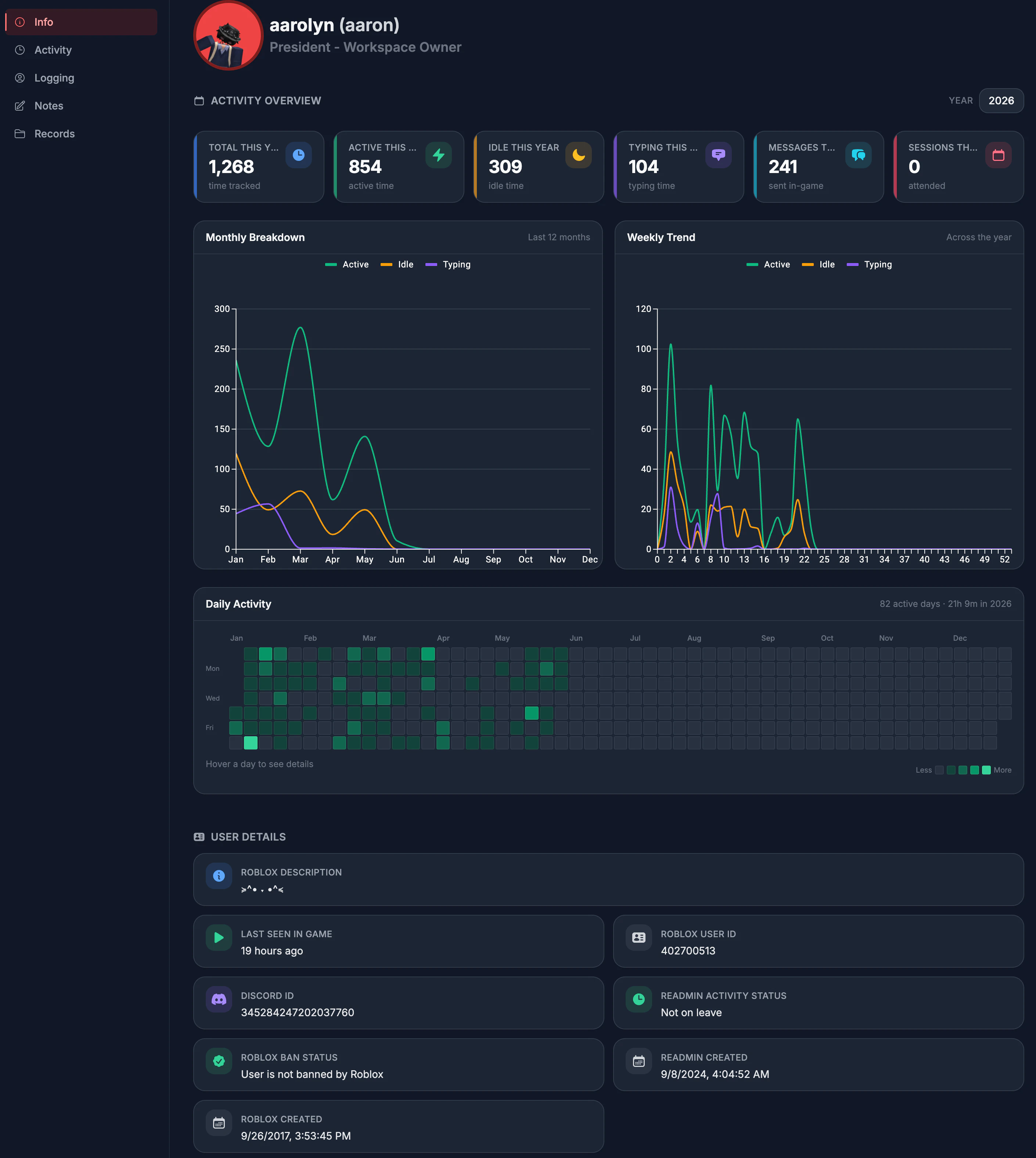
The Info tab is your starting point for any member — a single, scannable summary of
who they are and how they're doing. It shows their Roblox and linked account
identity, distribution minutes, last seen, Discord user, current activity state,
time-off status, and ReAdmin status, so you can answer "what's the status of this
person?" in seconds before digging deeper.
 ## Activity
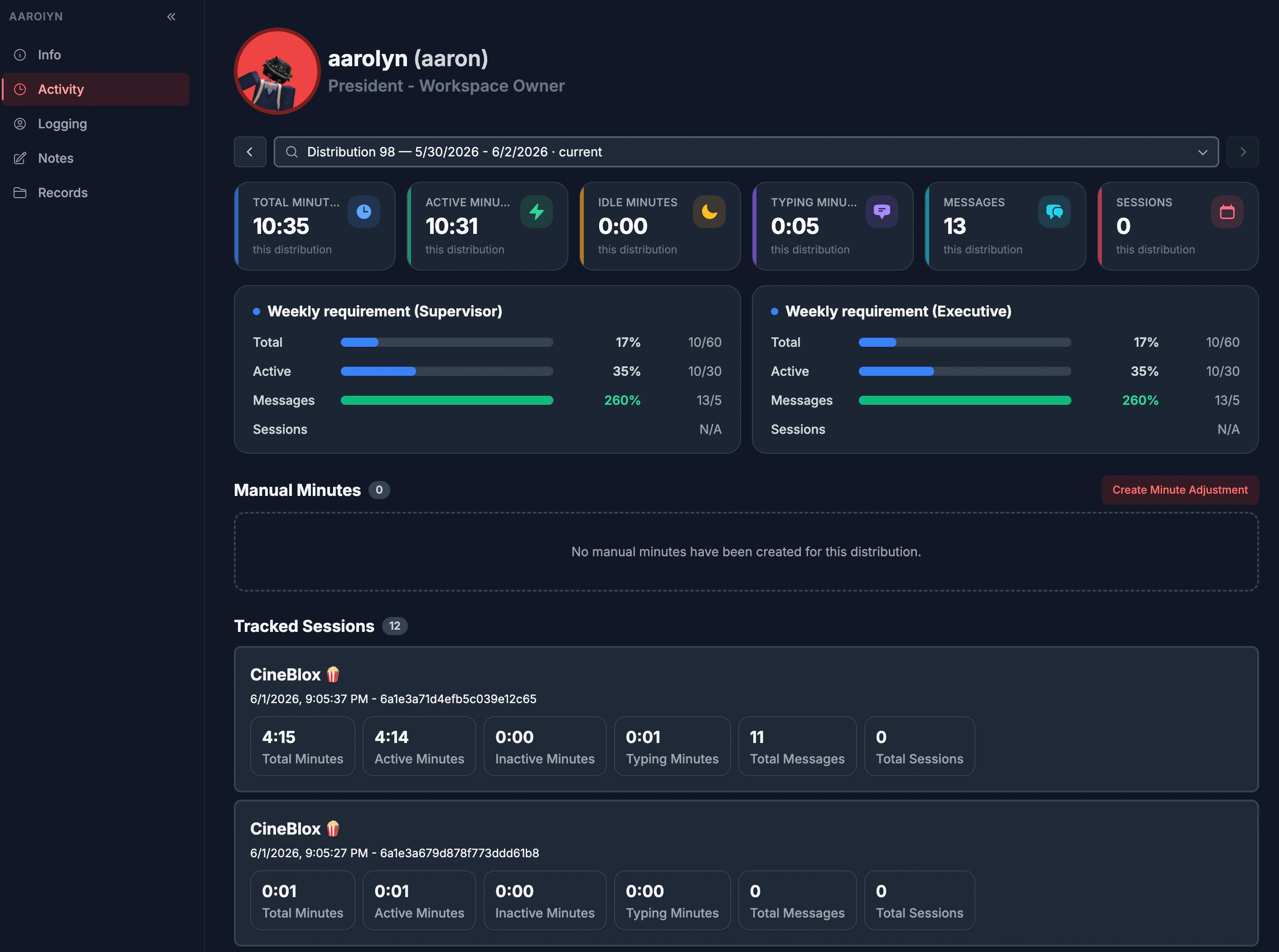
Activity is where raw play time becomes real insight. For any
[distribution period](/settings/distributions), you can see exactly how active a
staff member has been — active minutes, idle time, typing, messages, and sessions
— and measure it against the goals you've set. Because every minute is validated
server-side, the numbers you base promotions and discipline on are ones you can
trust. Switch distribution periods from the dropdown to review any window.
## Activity
Activity is where raw play time becomes real insight. For any
[distribution period](/settings/distributions), you can see exactly how active a
staff member has been — active minutes, idle time, typing, messages, and sessions
— and measure it against the goals you've set. Because every minute is validated
server-side, the numbers you base promotions and discipline on are ones you can
trust. Switch distribution periods from the dropdown to review any window.
 ### Goals
[Goals](/settings/goals) are created in your workspace settings, they allow you to quickly measure a staffs performance in-relation to a pre-determined goal. It also is a great way to create motivation for your team.
### Goals
[Goals](/settings/goals) are created in your workspace settings, they allow you to quickly measure a staffs performance in-relation to a pre-determined goal. It also is a great way to create motivation for your team.
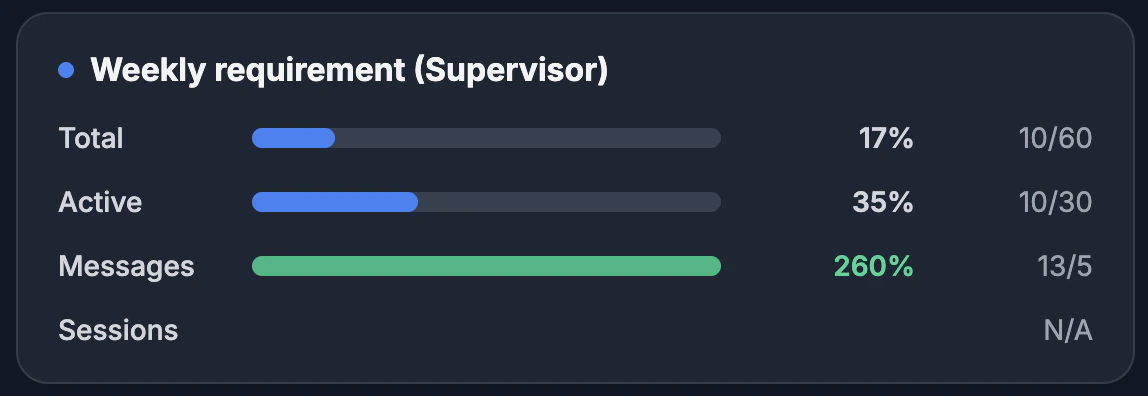 Goals show the percentage of them making their goal, and is not locked to 100%. So if a user goes over their goal/requirement then it will show the actual percentage they went over.
### Manual Minutes
Manual minutes allow you to artifically create time for a user without them being in-game for that time. Almost like a time-clock.
Goals show the percentage of them making their goal, and is not locked to 100%. So if a user goes over their goal/requirement then it will show the actual percentage they went over.
### Manual Minutes
Manual minutes allow you to artifically create time for a user without them being in-game for that time. Almost like a time-clock.
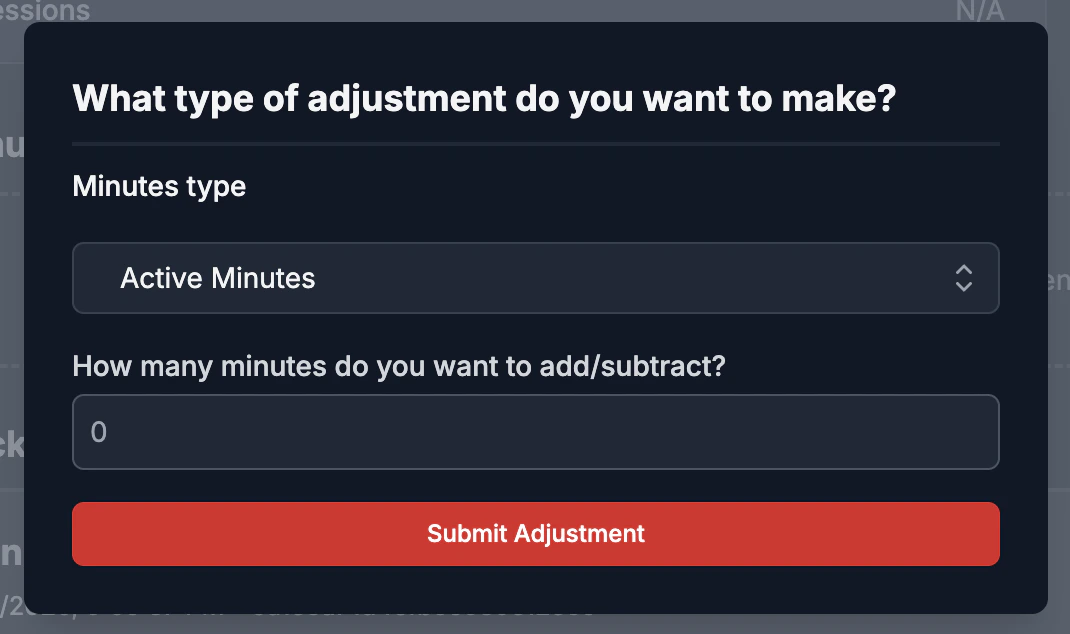 You can also take away time for a user by creating negative minutes (i.e -50 active minutes). This also subtracts from the total time for the user, and vice-versa for positive minutes.
### Summaries
A summary allows you to see what actions a user took during a play session, like chats, when they were AFK/active/chatting.etc. They are displayed from newest to oldest in the distribution.
You can also take away time for a user by creating negative minutes (i.e -50 active minutes). This also subtracts from the total time for the user, and vice-versa for positive minutes.
### Summaries
A summary allows you to see what actions a user took during a play session, like chats, when they were AFK/active/chatting.etc. They are displayed from newest to oldest in the distribution.
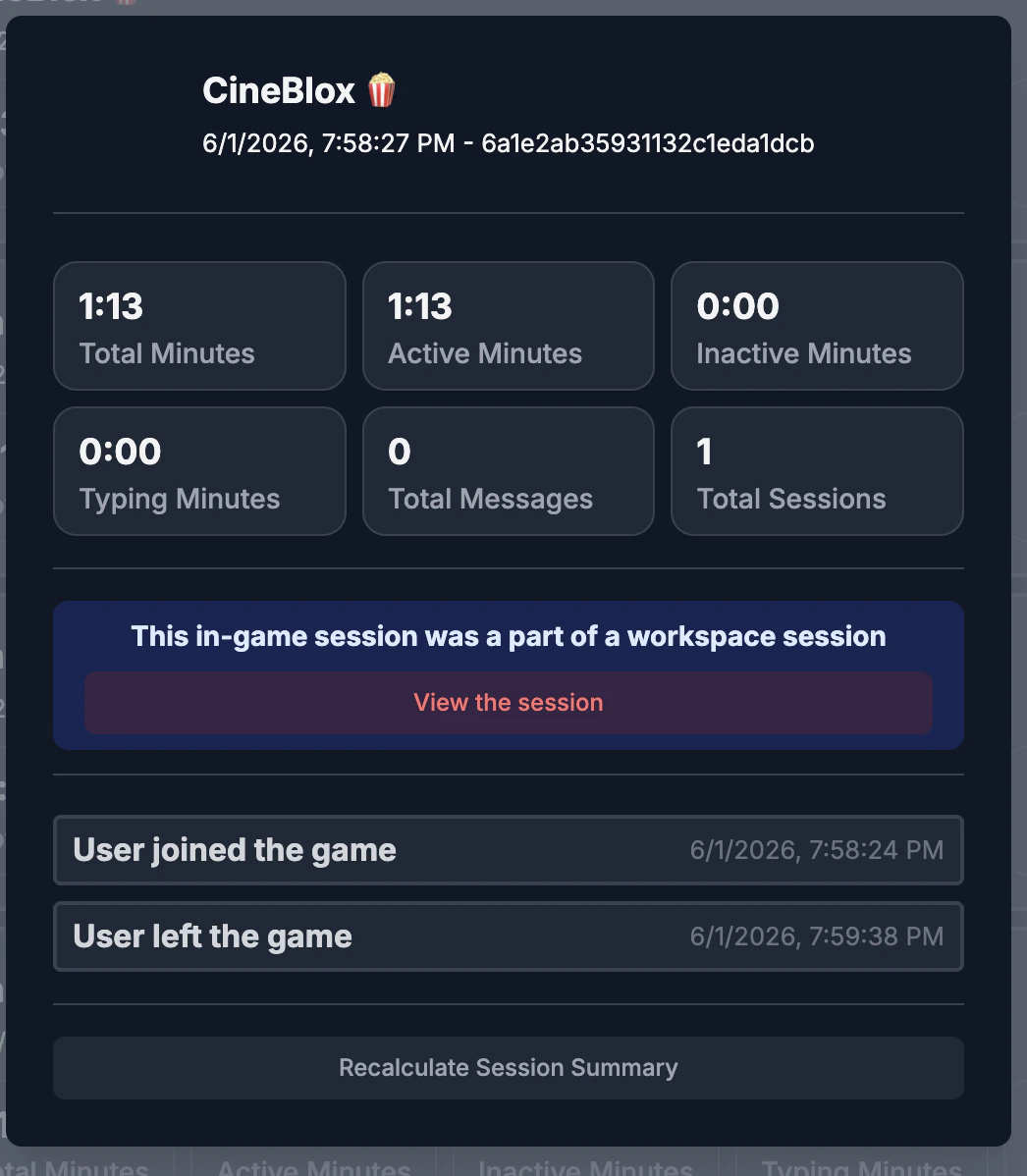 The session will display chat messages and all events that occurred within. If the user was also taking part in a session (as in they had a claimed role) then you will be able to click into the [ReAdmin session](/features/sessions).
## Staff History
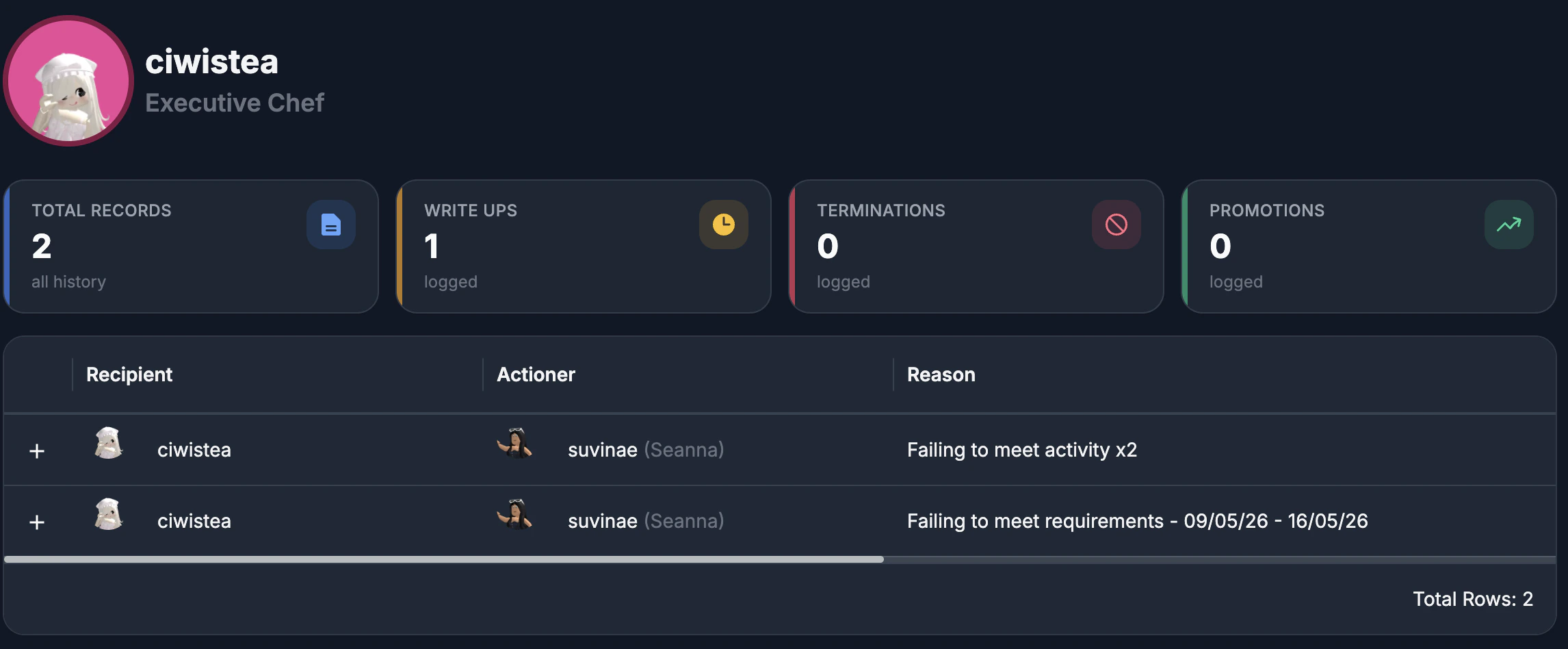
Staff History is the durable, auditable timeline of every meaningful action taken
on the member — promotions, write ups, demotions, suspensions, and terminations —
each one stamped with its actioner, reason, and any attached evidence. It keeps
discipline and recognition in one fair, defensible place. Learn more on the
[Staff History](/features/staff-history) page.
The session will display chat messages and all events that occurred within. If the user was also taking part in a session (as in they had a claimed role) then you will be able to click into the [ReAdmin session](/features/sessions).
## Staff History
Staff History is the durable, auditable timeline of every meaningful action taken
on the member — promotions, write ups, demotions, suspensions, and terminations —
each one stamped with its actioner, reason, and any attached evidence. It keeps
discipline and recognition in one fair, defensible place. Learn more on the
[Staff History](/features/staff-history) page.
 ## Records
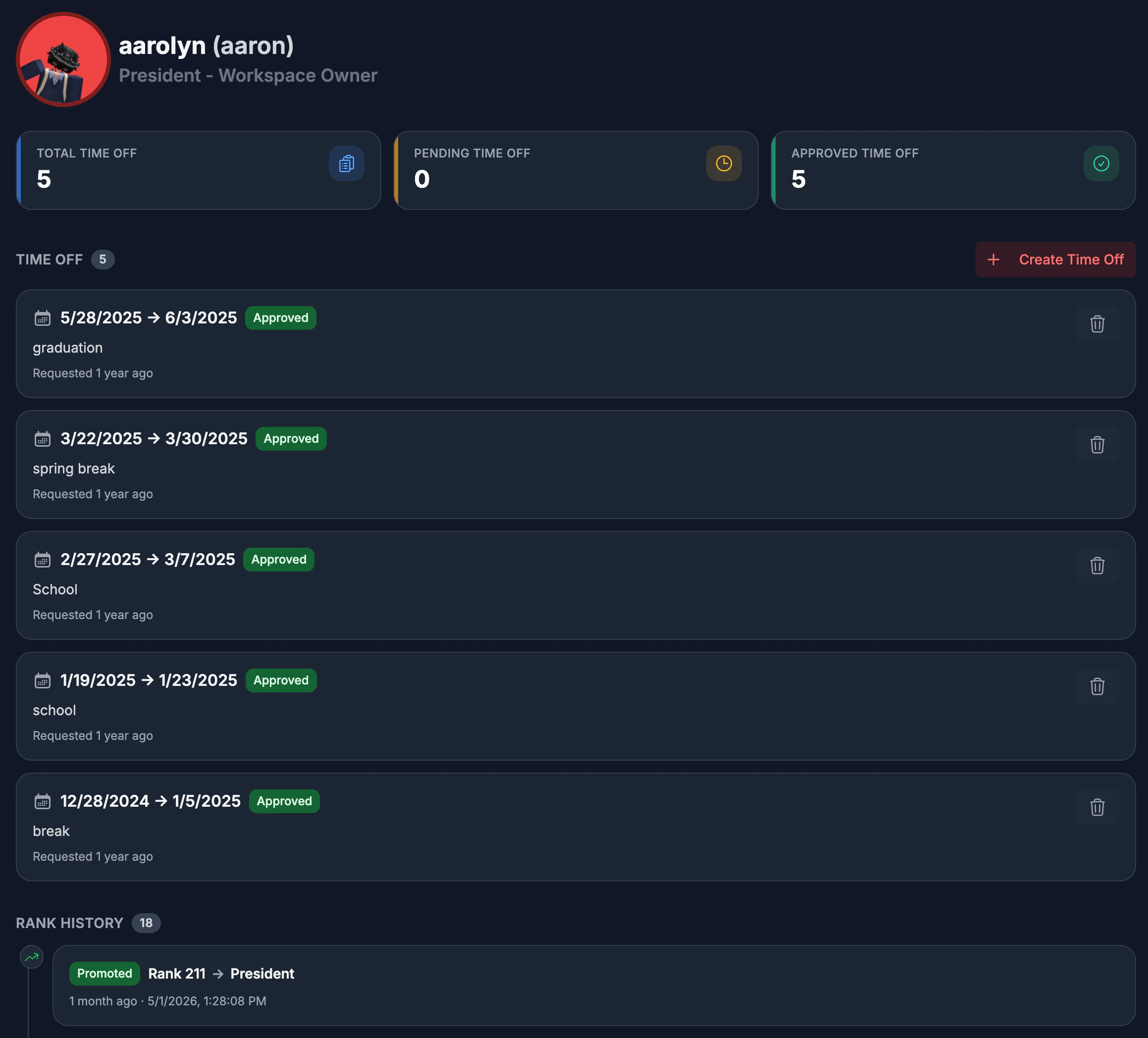
Records pull together everything else connected to the member into a single
timeline — team memberships and how they were granted, promotion request history,
time-off requests and their outcomes, and other profile-linked records your
permissions expose. Instead of hunting through separate pages, you get the full
paper trail you reach for before a promotion, discipline, or audit decision.
## Records
Records pull together everything else connected to the member into a single
timeline — team memberships and how they were granted, promotion request history,
time-off requests and their outcomes, and other profile-linked records your
permissions expose. Instead of hunting through separate pages, you get the full
paper trail you reach for before a promotion, discipline, or audit decision.
 ## Notes
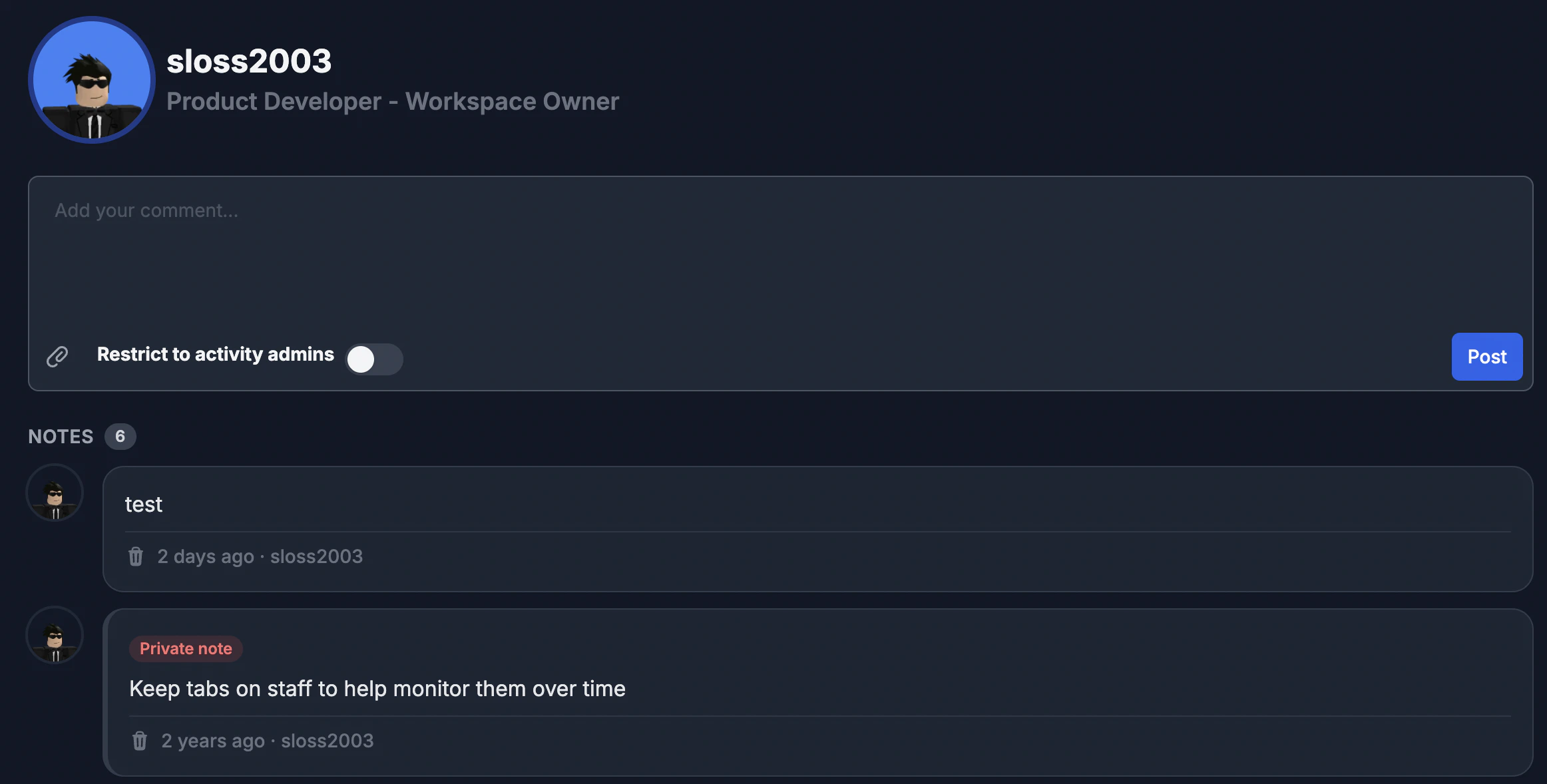
Notes give your team a lightweight, shared memory for every member — the coaching
moments, reminders, and context that don't belong in formal staff history. Add a
quick text note, attach a file, and lock sensitive notes so they only display to
Activity Admins. Every note is stamped with its author and timestamp, so the next
person who works with that member has the full story.
## Notes
Notes give your team a lightweight, shared memory for every member — the coaching
moments, reminders, and context that don't belong in formal staff history. Add a
quick text note, attach a file, and lock sensitive notes so they only display to
Activity Admins. Every note is stamped with its author and timestamp, so the next
person who works with that member has the full story.