> ## Documentation Index
> Fetch the complete documentation index at: https://docs.readmin.app/llms.txt
> Use this file to discover all available pages before exploring further.
# Timeclock
> Let staff clock in and out from the dashboard, then review attendance against a live week-by-week timeline.
This feature is early-access, please give us feedback!
Timeclock is configured from your [Timeclock settings](/settings/timeclock). An
admin must enable it before the widget and manager page appear.
Timeclock gives your team a simple punch-in / punch-out system that lives right
next to your activity tracking — without replacing it. Staff clock in when they
start a shift and clock out when they finish, every entry is filed under the
current [distribution](/settings/distributions), and managers get a clean
overview plus a visual week timeline to see exactly who was on shift and when.
## Clocking in and out
When the timeclock is enabled for a staff member's department, a **Clock In /
Clock Out** widget appears on their workspace dashboard. One click starts a
shift; one click ends it. A member can only have a single open shift at a time,
and the widget shows their running shift length live.
 Every shift is automatically filed under the distribution that is active when the
member clocks in, so attendance always lines up with the same periods your
activity data uses.
## Manager overview
The **Timeclock** page (in the workspace navigation) gives managers a full view
of attendance for any distribution:
Every shift is automatically filed under the distribution that is active when the
member clocks in, so attendance always lines up with the same periods your
activity data uses.
## Manager overview
The **Timeclock** page (in the workspace navigation) gives managers a full view
of attendance for any distribution:
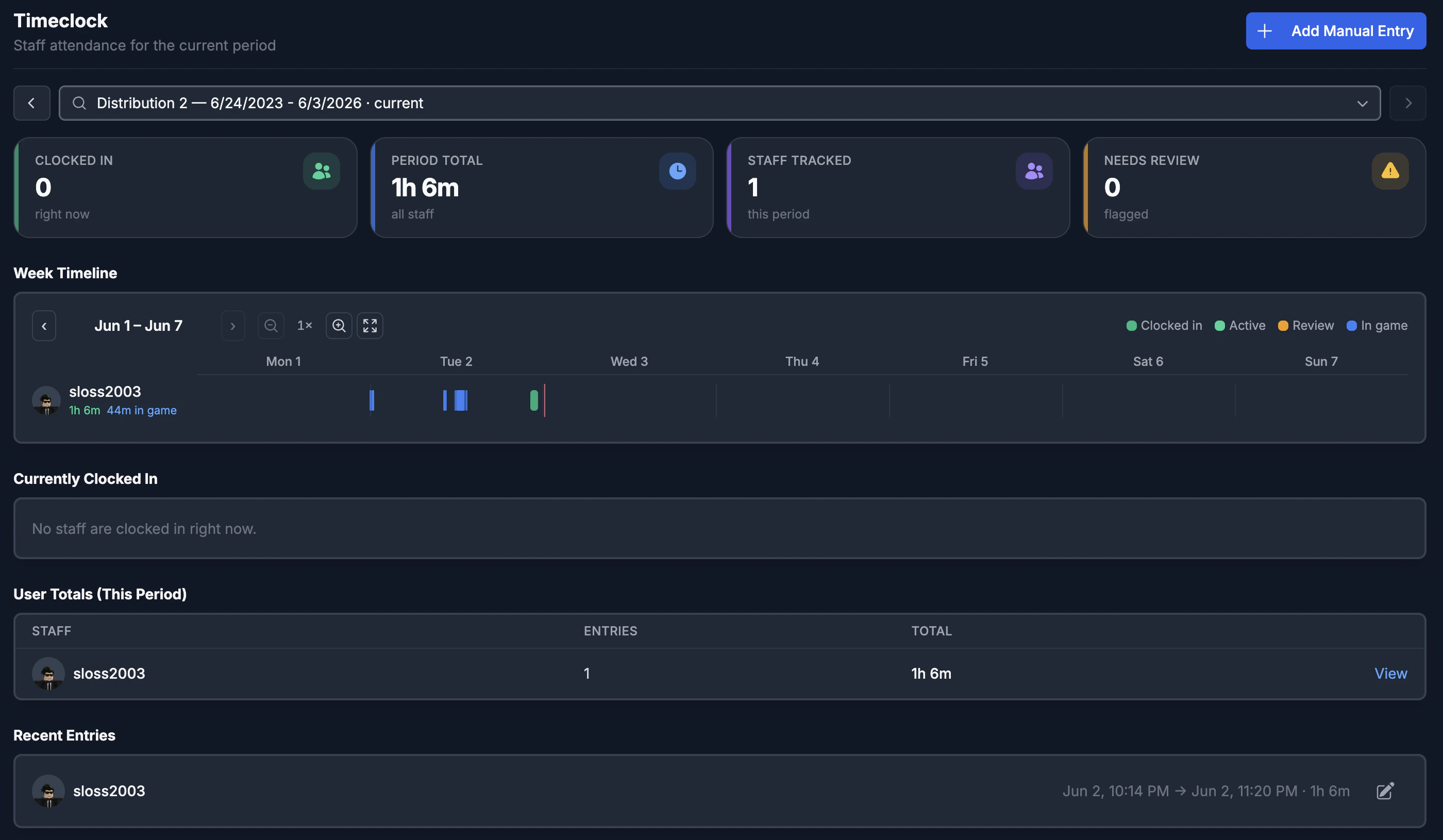 * **Currently clocked in** — everyone with an open shift right now, with their
running shift length.
* **Period totals** — total clocked-in time per staff member for the selected
distribution, ranked so your most-present staff rise to the top.
* **Needs review** — shifts that ran past your configured maximum length are
flagged automatically so a manager can correct or close them.
* **Recent activity** — the latest clock-ins and clock-outs across the team.
Use the [distribution selector](/settings/distributions) at the top of the page
to switch between the current period and any past period. Live data such as
"currently clocked in" only shows for the current distribution.
## Week timeline
The week timeline is a Gantt-style view of your team's shifts. Each staff member
gets a row, and their shifts are drawn as bars across a seven-day week.
* **Green bars** are clocked-in time. Active (still-running) shifts pulse, and
shifts flagged for review turn **amber**.
* **Blue bars** show tracked in-game time for the same period, pulled straight
from your [activity tracking](/features/sessions). When a member is clocked in
*and* in-game at the same moment, the two bars split the row — green on top,
blue on the bottom — so you can instantly see whether clocked time matches real
in-game time.
* A red marker shows the current time, and day gridlines keep everything aligned.
You can move between weeks with the arrows, **zoom in** for minute-level detail
(the timeline scrolls horizontally while names stay pinned), and **expand** the
rows for a taller, easier-to-read view.
## Manual entries
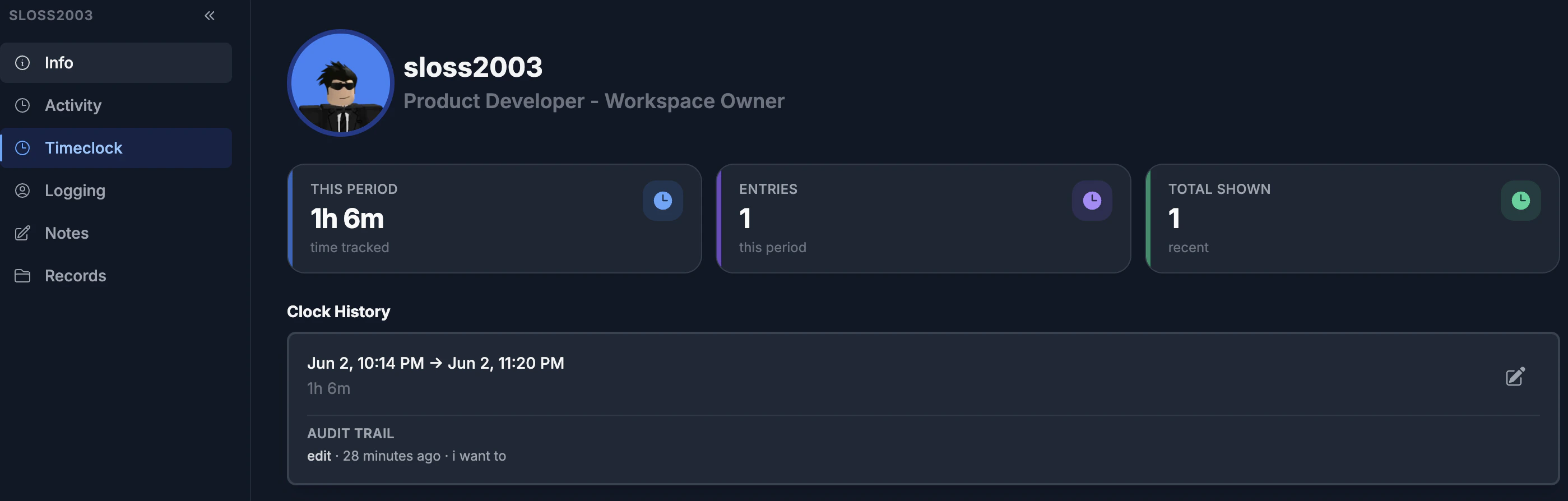
If a member forgets to clock in, a manager can add the time on their behalf.
Manual entries use the same [Roblox user search](/features/user) you'll find
elsewhere in ReAdmin — just search for the staff member, set the clock-in and
clock-out times, and add a reason. Every manual entry is written to the audit
trail so corrections are always traceable.
* **Currently clocked in** — everyone with an open shift right now, with their
running shift length.
* **Period totals** — total clocked-in time per staff member for the selected
distribution, ranked so your most-present staff rise to the top.
* **Needs review** — shifts that ran past your configured maximum length are
flagged automatically so a manager can correct or close them.
* **Recent activity** — the latest clock-ins and clock-outs across the team.
Use the [distribution selector](/settings/distributions) at the top of the page
to switch between the current period and any past period. Live data such as
"currently clocked in" only shows for the current distribution.
## Week timeline
The week timeline is a Gantt-style view of your team's shifts. Each staff member
gets a row, and their shifts are drawn as bars across a seven-day week.
* **Green bars** are clocked-in time. Active (still-running) shifts pulse, and
shifts flagged for review turn **amber**.
* **Blue bars** show tracked in-game time for the same period, pulled straight
from your [activity tracking](/features/sessions). When a member is clocked in
*and* in-game at the same moment, the two bars split the row — green on top,
blue on the bottom — so you can instantly see whether clocked time matches real
in-game time.
* A red marker shows the current time, and day gridlines keep everything aligned.
You can move between weeks with the arrows, **zoom in** for minute-level detail
(the timeline scrolls horizontally while names stay pinned), and **expand** the
rows for a taller, easier-to-read view.
## Manual entries
If a member forgets to clock in, a manager can add the time on their behalf.
Manual entries use the same [Roblox user search](/features/user) you'll find
elsewhere in ReAdmin — just search for the staff member, set the clock-in and
clock-out times, and add a reason. Every manual entry is written to the audit
trail so corrections are always traceable.
 Manual entries can be turned off entirely from
[Timeclock settings](/settings/timeclock) if you want clock-ins to be
self-service only.
## Corrections and the audit trail
Managers with the right permissions can **force a shift closed**, **edit** an
entry's times, or **add** a manual entry. Every correction records who made it,
when, and why, and is kept on the entry's history so nothing is ever silently
changed.
## Permissions
Timeclock uses department-level permissions so you control exactly who can do
what:
| Permission | What it allows |
| ---------- | ----------------------------------------------------- |
| **Clock** | Use the self-service clock in / out widget. |
| **View** | See the manager Timeclock page and the week timeline. |
| **Manage** | Force shifts closed and add manual entries. |
| **Edit** | Edit existing entries' times. |
Workspace **admins** automatically have every timeclock permission. Managers with
**View** see *all* records regardless of the department allow-list — the
department restriction only controls who can clock in for themselves.
Ready to turn it on? Head to [Timeclock settings](/settings/timeclock) to enable
the feature, choose which departments can use it, and tune shift behavior.
Manual entries can be turned off entirely from
[Timeclock settings](/settings/timeclock) if you want clock-ins to be
self-service only.
## Corrections and the audit trail
Managers with the right permissions can **force a shift closed**, **edit** an
entry's times, or **add** a manual entry. Every correction records who made it,
when, and why, and is kept on the entry's history so nothing is ever silently
changed.
## Permissions
Timeclock uses department-level permissions so you control exactly who can do
what:
| Permission | What it allows |
| ---------- | ----------------------------------------------------- |
| **Clock** | Use the self-service clock in / out widget. |
| **View** | See the manager Timeclock page and the week timeline. |
| **Manage** | Force shifts closed and add manual entries. |
| **Edit** | Edit existing entries' times. |
Workspace **admins** automatically have every timeclock permission. Managers with
**View** see *all* records regardless of the department allow-list — the
department restriction only controls who can clock in for themselves.
Ready to turn it on? Head to [Timeclock settings](/settings/timeclock) to enable
the feature, choose which departments can use it, and tune shift behavior.