> ## Documentation Index
> Fetch the complete documentation index at: https://docs.readmin.app/llms.txt
> Use this file to discover all available pages before exploring further.
# Teams & Approvals
> Organize staff into teams with a reporting hierarchy, then route time-off and expense requests through a configurable approval chain.
This feature is early-access, please give us feedback!
Teams is configured from your [Teams settings](/settings/teams). An admin must
enable it before the Teams navigation, request queue, and profile panels appear.
Teams turns a flat staff list into a real organization. You group members into
teams, give each team its leads, and build a reporting hierarchy that mirrors how
your community actually works. On top of that hierarchy, ReAdmin routes the
requests that matter — **time off** and **expense reports** — through exactly the
people who should sign off on them, with a full audit trail and a comment thread
on every request.
 ## Teams and hierarchy
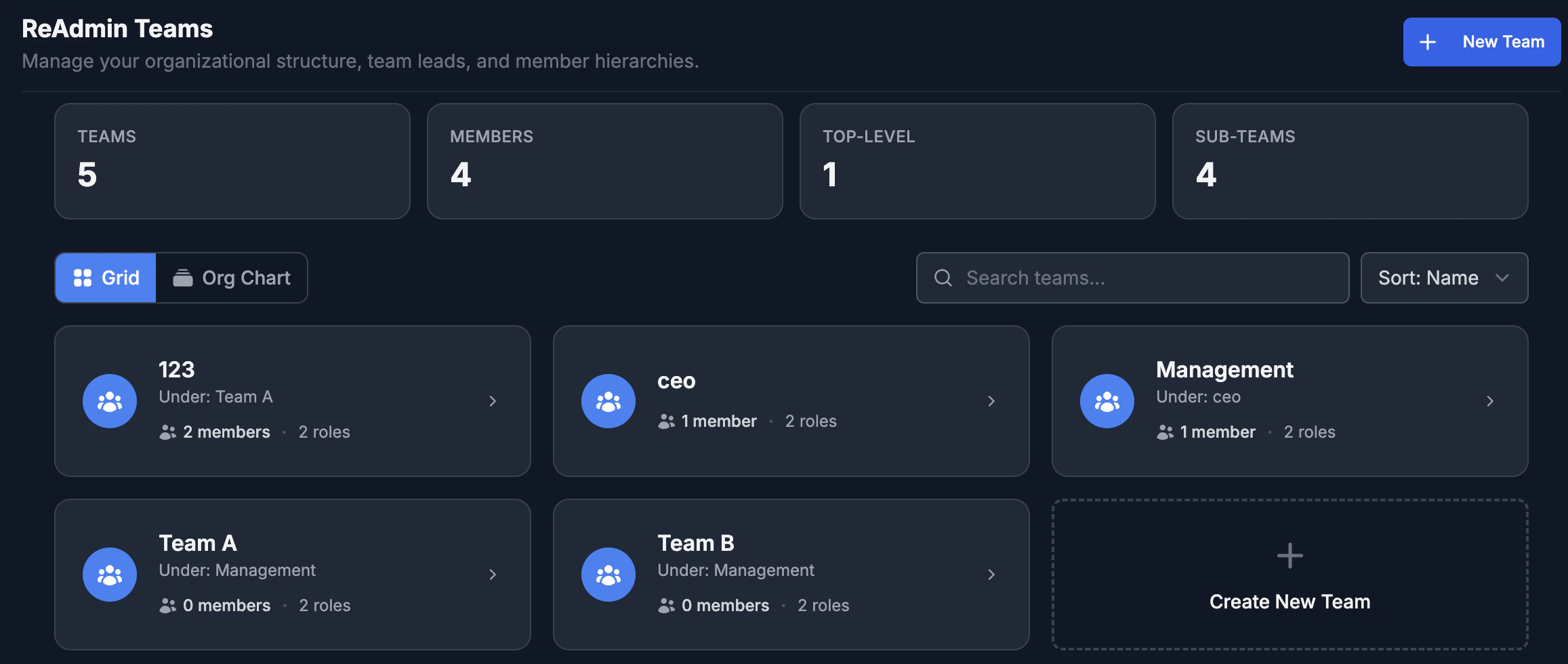
A **team** is a named group of members with one or more leads. Teams can sit
under other teams, which gives you a tree — directors over managers over staff,
department by department. From any member you can see:
* The **teams** they belong to.
* Who they **report to** (their manager chain, all the way up).
* Their **direct reports** (everyone who reports to them).
This hierarchy is what approval routing walks when a request needs to escalate,
and it's surfaced on each member's profile in the **Teams** panel.
## Teams and hierarchy
A **team** is a named group of members with one or more leads. Teams can sit
under other teams, which gives you a tree — directors over managers over staff,
department by department. From any member you can see:
* The **teams** they belong to.
* Who they **report to** (their manager chain, all the way up).
* Their **direct reports** (everyone who reports to them).
This hierarchy is what approval routing walks when a request needs to escalate,
and it's surfaced on each member's profile in the **Teams** panel.
 ## Requests
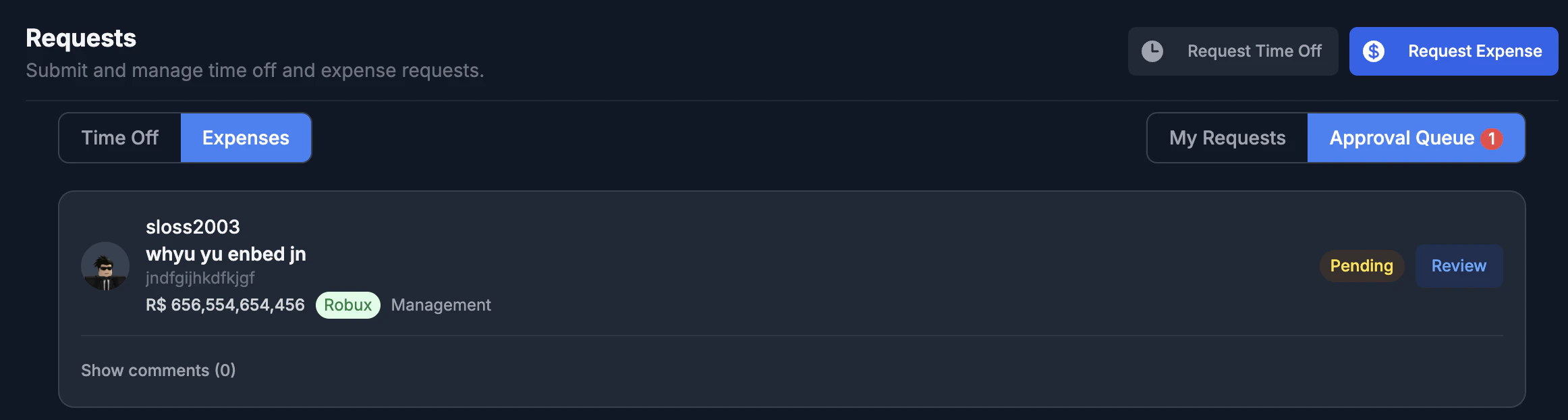
The **Requests** page (in the Teams navigation) is where members submit and track
time-off and expense requests, and where approvers act on the ones waiting on
them. It has two views:
* **Mine** — requests you've submitted, filterable by status.
* **Pending approvals** — requests waiting on *you*, based on where they are in
their approval chain.
## Requests
The **Requests** page (in the Teams navigation) is where members submit and track
time-off and expense requests, and where approvers act on the ones waiting on
them. It has two views:
* **Mine** — requests you've submitted, filterable by status.
* **Pending approvals** — requests waiting on *you*, based on where they are in
their approval chain.
 ### Time off
A member requests time off with a reason and a date range. The request enters its
configured approval chain and moves forward one step at a time as each approver
signs off.
### Expense reports
An expense request carries an **amount**, a **description**, and optional **file
attachments** (receipts, invoices, screenshots). Like time off, it walks its
approval chain — but expenses can be routed very differently, for example
skipping a direct manager and going straight to a finance team. See
[Expense routing](#approval-routing) below.
You can restrict who is allowed to submit expense requests. When **Let members
request expenses** is turned off in [Teams settings](/settings/teams), only
managers and approvers see the **Request Expense** button and the server rejects
member submissions. Time-off requests are always available.
## Approval routing
Every request type — time off and expenses — has its own **approval chain**,
configured by an admin in [Teams settings](/settings/teams). There are two modes:
The request walks up the requester's manager chain a set number of levels. One
level means just their direct manager; two escalates to their manager's
manager, and so on.
You build an ordered list of steps. Each step can be a manager at a chosen
level, the **leads of any team**, or a **specific person** — so you can bypass
a direct report and send straight to another department.
## Comments
Every request — time off or expense — has a **comment thread**. Approvers can ask
a question before they decide, a requester can add context, and whoever pays out
an expense can note **exactly how it was disbursed**. Comments live on the request
itself, so the full story is always on the record rather than scattered across
DMs.
### Time off
A member requests time off with a reason and a date range. The request enters its
configured approval chain and moves forward one step at a time as each approver
signs off.
### Expense reports
An expense request carries an **amount**, a **description**, and optional **file
attachments** (receipts, invoices, screenshots). Like time off, it walks its
approval chain — but expenses can be routed very differently, for example
skipping a direct manager and going straight to a finance team. See
[Expense routing](#approval-routing) below.
You can restrict who is allowed to submit expense requests. When **Let members
request expenses** is turned off in [Teams settings](/settings/teams), only
managers and approvers see the **Request Expense** button and the server rejects
member submissions. Time-off requests are always available.
## Approval routing
Every request type — time off and expenses — has its own **approval chain**,
configured by an admin in [Teams settings](/settings/teams). There are two modes:
The request walks up the requester's manager chain a set number of levels. One
level means just their direct manager; two escalates to their manager's
manager, and so on.
You build an ordered list of steps. Each step can be a manager at a chosen
level, the **leads of any team**, or a **specific person** — so you can bypass
a direct report and send straight to another department.
## Comments
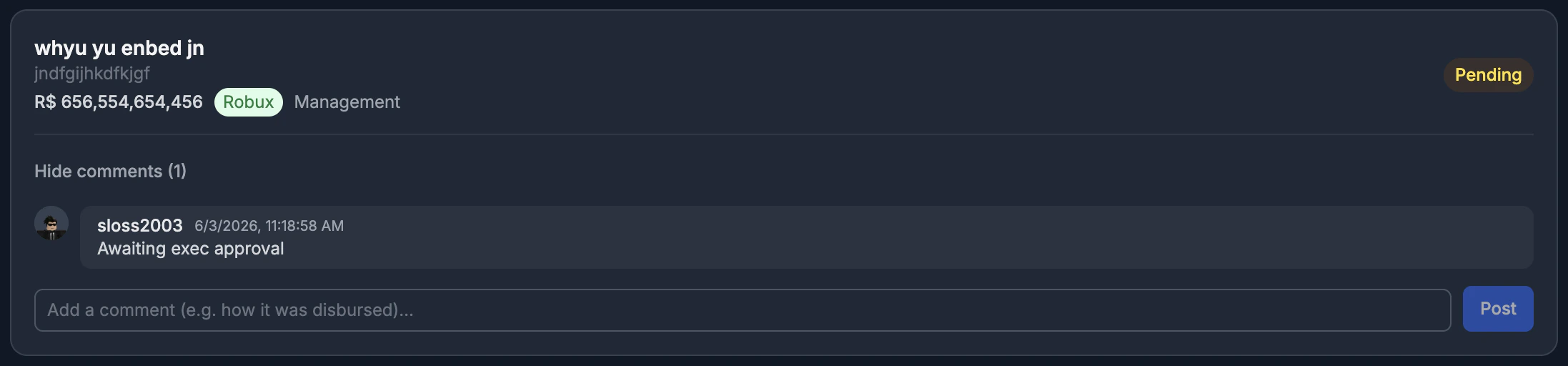
Every request — time off or expense — has a **comment thread**. Approvers can ask
a question before they decide, a requester can add context, and whoever pays out
an expense can note **exactly how it was disbursed**. Comments live on the request
itself, so the full story is always on the record rather than scattered across
DMs.
 ## Permissions
Teams uses department-level permissions so you control exactly who can do what:
| Permission | What it allows |
| ----------- | ------------------------------------------------------ |
| **View** | See teams, the hierarchy, and request queues. |
| **Manage** | Create and edit teams, members, and leads. |
| **Approve** | Act on requests assigned to them in an approval chain. |
Workspace **admins** automatically have every Teams permission, can see all
pending requests regardless of chain, and are the only role that can change
[Teams settings](/settings/teams).
## Related pages
* [Teams settings](/settings/teams)
* [Time Off](/features/time-off)
* [Users](/features/users)
* [Flows](/features/flows)
## Permissions
Teams uses department-level permissions so you control exactly who can do what:
| Permission | What it allows |
| ----------- | ------------------------------------------------------ |
| **View** | See teams, the hierarchy, and request queues. |
| **Manage** | Create and edit teams, members, and leads. |
| **Approve** | Act on requests assigned to them in an approval chain. |
Workspace **admins** automatically have every Teams permission, can see all
pending requests regardless of chain, and are the only role that can change
[Teams settings](/settings/teams).
## Related pages
* [Teams settings](/settings/teams)
* [Time Off](/features/time-off)
* [Users](/features/users)
* [Flows](/features/flows)