> ## Documentation Index
> Fetch the complete documentation index at: https://docs.readmin.app/llms.txt
> Use this file to discover all available pages before exploring further.
# Tasks
> Plan, assign and track your team’s work on a flexible board.
Tasks gives your team a full task board to organize and track work. Drag cards
between your own custom columns, set priorities and due dates, assign individual
members or entire departments, and keep everything documented with notes,
attachments, reminders and a full activity timeline — so nothing slips through
the cracks.
## The Board
Tasks open on the **Board** — a Kanban-style view where every column is a
category you control (for example *To Do*, *In Progress* and *Done*). Each card
is a task, and you can drag cards between columns or reorder them within a column
to reflect their status.
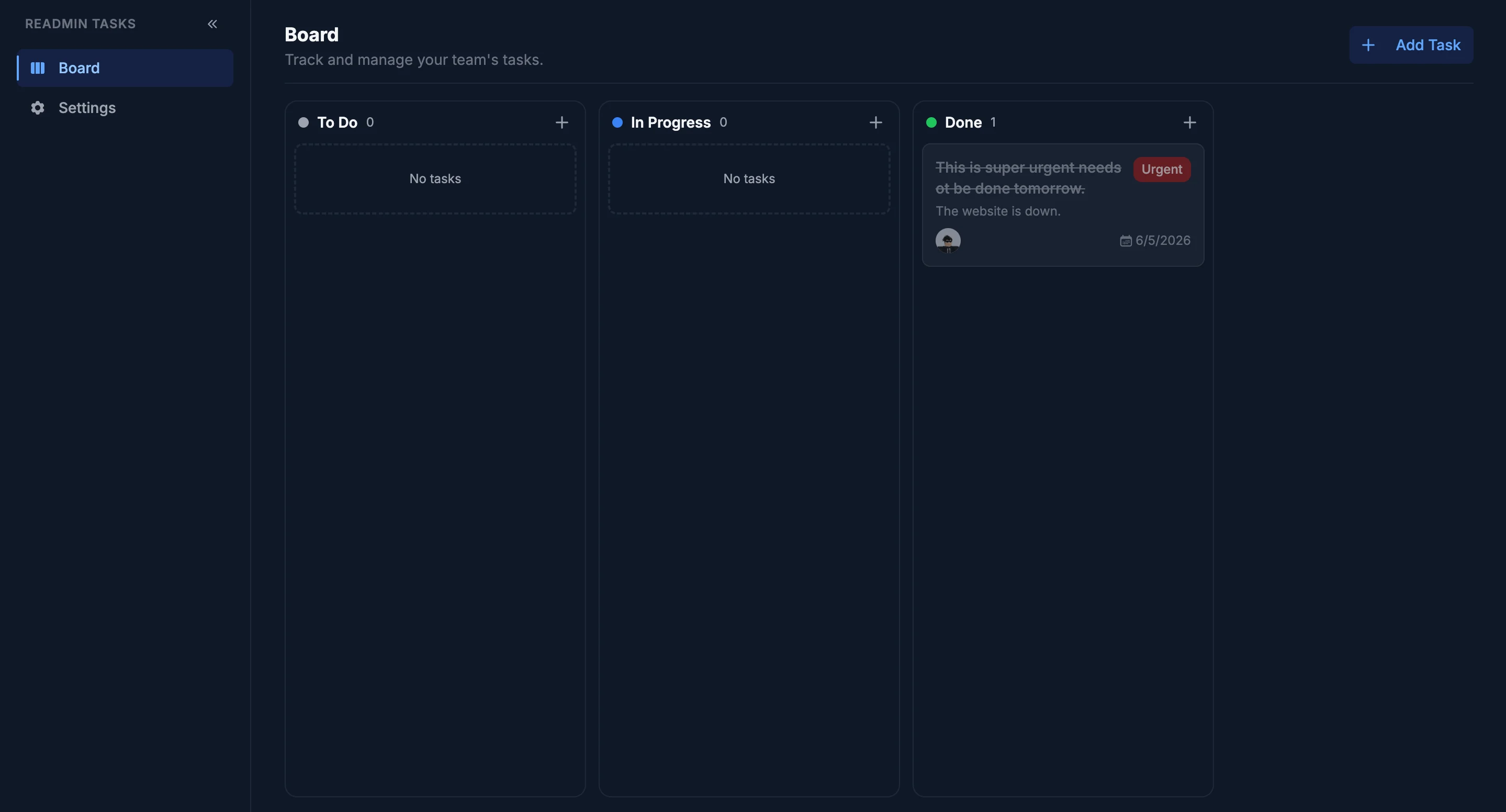 At a glance, every card shows its title, priority, due date, assignees and a
quick indicator for any notes or attachments.
## Creating a task
Click **Add Task** in the top right of the board (or the **+** at the top of any
column to drop the new task straight into it).
At a glance, every card shows its title, priority, due date, assignees and a
quick indicator for any notes or attachments.
## Creating a task
Click **Add Task** in the top right of the board (or the **+** at the top of any
column to drop the new task straight into it).
 Give the task a **title** and an optional **description**, then fill in any of
the following:
Give the task a **title** and an optional **description**, then fill in any of
the following:
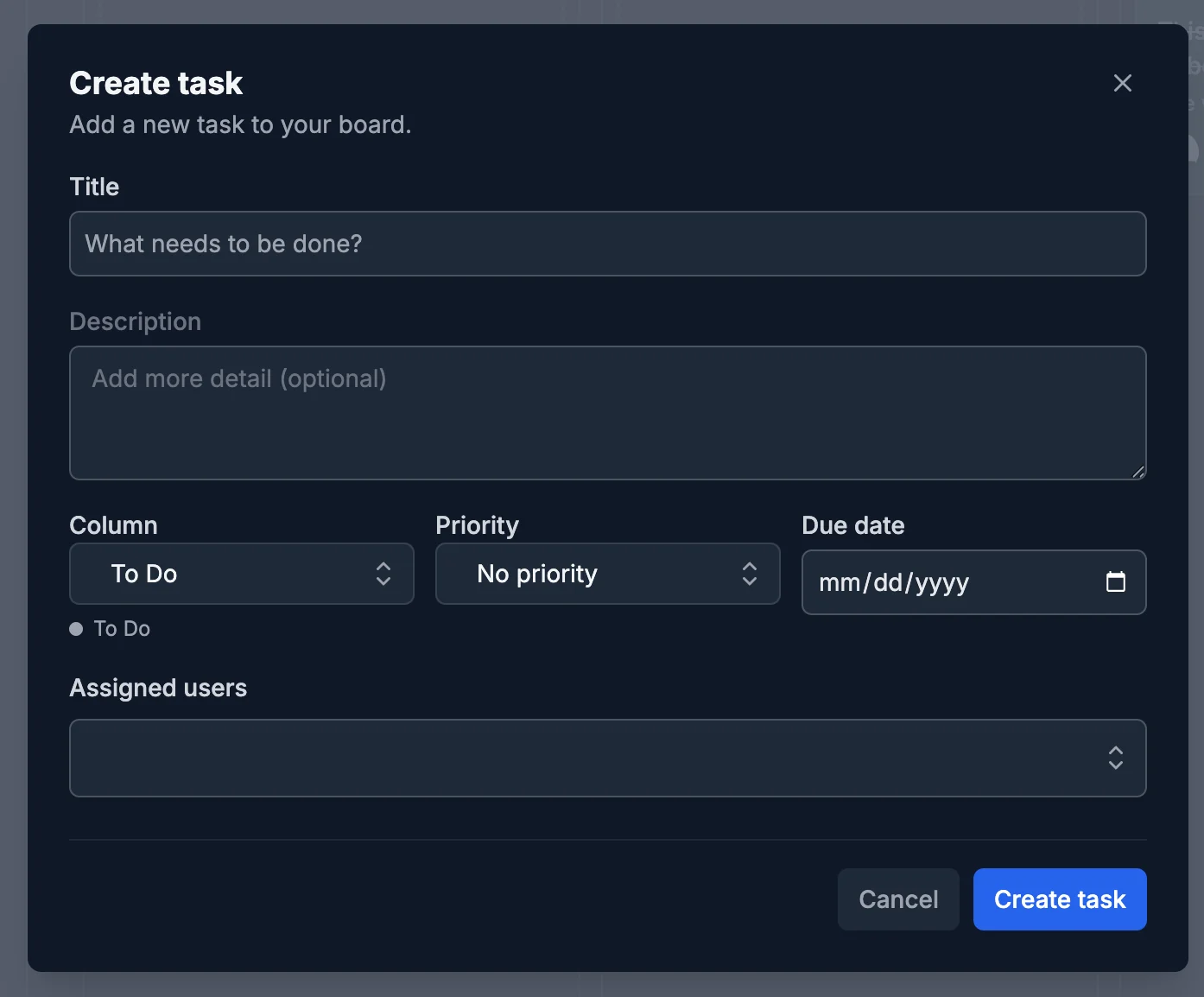 * **Category** — which column the task starts in.
* **Priority** — *No priority*, *Low*, *Medium*, *High* or *Urgent*. Priorities
are color-coded on the card so urgent work stands out.
* **Due date** — when the task needs to be finished by.
* **Assignees** — assign one or more workspace members, entire departments, or
both. Everyone assigned can see and work the task.
* **Custom fields** — any extra fields your workspace has configured (see
[Board settings](#board-settings)).
## Working a task
Click any card to open the task detail view. It’s organized into tabs so you can
focus on exactly what you need:
Edit the title, description, priority, due date, category and assignees at
any time, and fill in any custom fields. Mark the task **complete** when the
work is done — completed tasks are clearly flagged on the board.
Leave notes to document progress, decisions or context. Each note records
who wrote it and when, so the whole team stays in the loop.
Upload supporting files — screenshots, PDFs, spreadsheets, documents and
more (up to 10MB each). Attachments are stored privately and can be
downloaded by anyone with access to the task.
Schedule a reminder for a specific date and time. Reminders can be sent as a
**Discord DM** or posted to a **Discord channel**, with an optional custom
message.
A full activity log of everything that has happened to the task — creation,
edits, moves between categories, assignments, notes, attachments, reminders
and completion — each stamped with who did it and when.
## Board settings
Workspace members with permission to manage tasks can customize the board from
the **Settings** tab.
### Categories
Categories are the columns on your board. You can:
* Create new categories and give each one a **color**.
* Rename or recolor existing categories.
* Reorder categories to change the column order.
* Delete a category — any tasks in it are automatically moved to your first
remaining category, so nothing is lost. You must always keep at least one.
### Custom fields
Custom fields let you capture extra structured information on every task. When
creating a field, choose a type:
| Type | Use it for |
| ------------ | --------------------------------------- |
| **Text** | Short free-form text |
| **Number** | Numeric values |
| **Date** | A specific date |
| **Dropdown** | A single choice from options you define |
| **Checkbox** | A simple yes/no toggle |
| **User** | Referencing a workspace member |
Custom fields appear in the create-task form and on the **Details** tab of every
task.
Managing the board (creating tasks, editing categories and custom fields, and
configuring settings) requires the **Manage Tasks** permission. Any assigned
member can still open tasks, add notes and mark them complete.
* **Category** — which column the task starts in.
* **Priority** — *No priority*, *Low*, *Medium*, *High* or *Urgent*. Priorities
are color-coded on the card so urgent work stands out.
* **Due date** — when the task needs to be finished by.
* **Assignees** — assign one or more workspace members, entire departments, or
both. Everyone assigned can see and work the task.
* **Custom fields** — any extra fields your workspace has configured (see
[Board settings](#board-settings)).
## Working a task
Click any card to open the task detail view. It’s organized into tabs so you can
focus on exactly what you need:
Edit the title, description, priority, due date, category and assignees at
any time, and fill in any custom fields. Mark the task **complete** when the
work is done — completed tasks are clearly flagged on the board.
Leave notes to document progress, decisions or context. Each note records
who wrote it and when, so the whole team stays in the loop.
Upload supporting files — screenshots, PDFs, spreadsheets, documents and
more (up to 10MB each). Attachments are stored privately and can be
downloaded by anyone with access to the task.
Schedule a reminder for a specific date and time. Reminders can be sent as a
**Discord DM** or posted to a **Discord channel**, with an optional custom
message.
A full activity log of everything that has happened to the task — creation,
edits, moves between categories, assignments, notes, attachments, reminders
and completion — each stamped with who did it and when.
## Board settings
Workspace members with permission to manage tasks can customize the board from
the **Settings** tab.
### Categories
Categories are the columns on your board. You can:
* Create new categories and give each one a **color**.
* Rename or recolor existing categories.
* Reorder categories to change the column order.
* Delete a category — any tasks in it are automatically moved to your first
remaining category, so nothing is lost. You must always keep at least one.
### Custom fields
Custom fields let you capture extra structured information on every task. When
creating a field, choose a type:
| Type | Use it for |
| ------------ | --------------------------------------- |
| **Text** | Short free-form text |
| **Number** | Numeric values |
| **Date** | A specific date |
| **Dropdown** | A single choice from options you define |
| **Checkbox** | A simple yes/no toggle |
| **User** | Referencing a workspace member |
Custom fields appear in the create-task form and on the **Details** tab of every
task.
Managing the board (creating tasks, editing categories and custom fields, and
configuring settings) requires the **Manage Tasks** permission. Any assigned
member can still open tasks, add notes and mark them complete.